
iOS p8 Token-Based Connection
iOS p8 Token-Based Connection to APNs
Step-by-step guide for creating an iOS .p8 Authentication Key for Apple Push Notification service (APNs).
To send push notifications to iOS apps, an authenticated connection to Apple Push Notification Services (APNs) is required. You can authenticate using a token-based (.p8 key) or a certificate-based (.p12 file) method — but only one is necessary.
This guide walks you through setting up a token-based .p8 key, the recommended approach.
Requirements
Before starting, ensure you have:
- An iOS mobile app
- A Paid Apple Developer Account with Admin access
- An Ocamba Account
- A Mac with Xcode 14+
- An Xcode project with Push Notification capability enabled
Generate Your .p8 Key in Apple Developer Account
Step 1: Access Keys Section
- Log into your Apple Developer Account
- Go to Certificates, Identifiers & Profiles > Keys
- Click the blue plus (+) icon
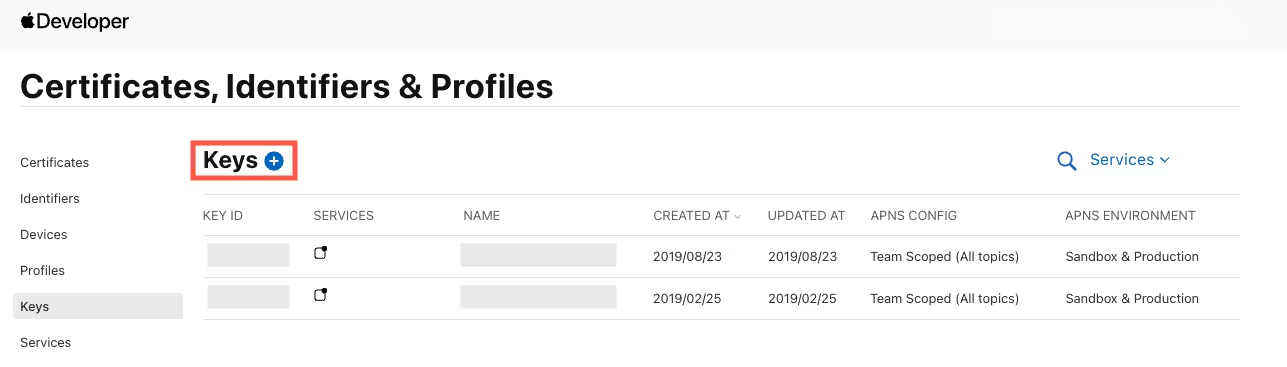
Step 2: Configure the Key
- Enter a descriptive name for the key (e.g., “Ocamba Push Key”)
- Select Apple Push Notifications service (APNs)
- Go to configure button
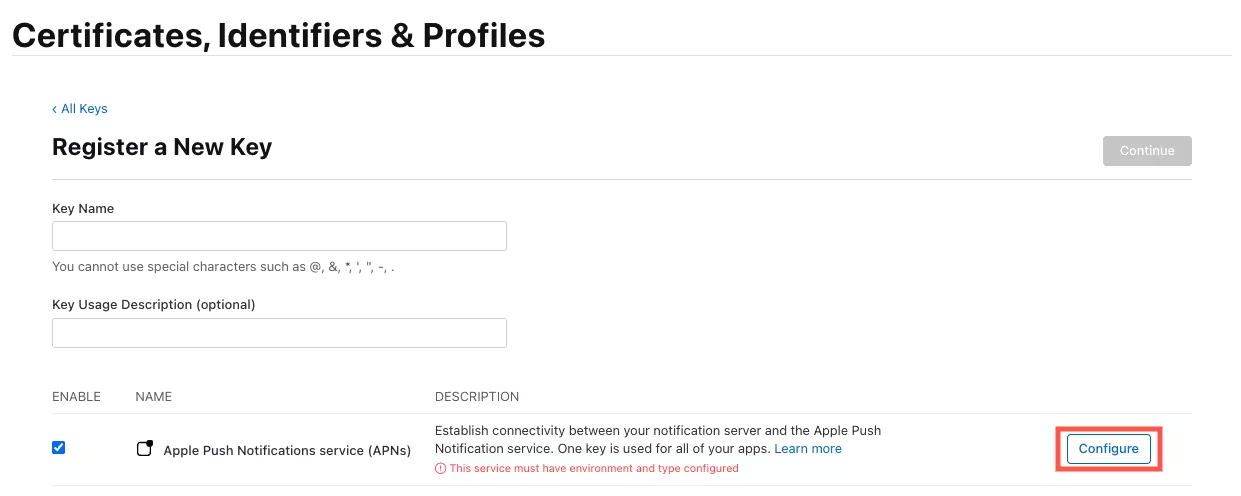
- Ensure that Sandbox & Production is selected
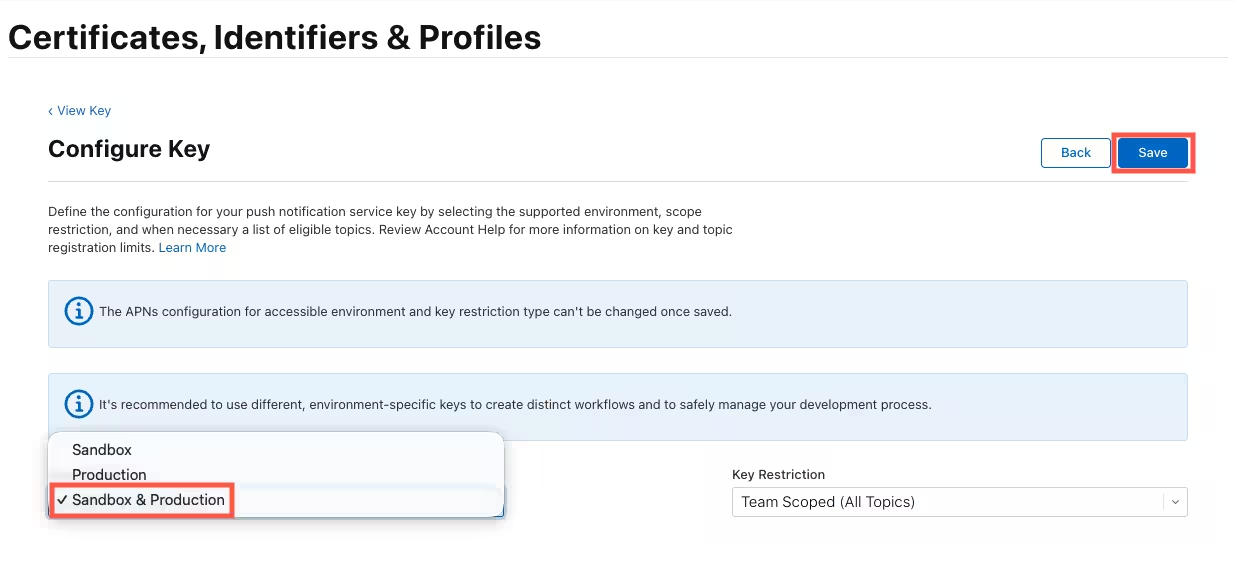
Step 3: Register and Download
- Click Continue, then Register
- Download your .p8 key immediately and store it securely
Step 4: Note Your Key Details
After creating the key, note the following information (you’ll need these when uploading to Ocamba):
- Key ID — Displayed in the Keys section next to your key name
- Team ID — Found in the top-right corner of your Apple Developer account
- App Bundle ID — Found in the Identifiers section or in Xcode under Main App Target > Signing & Capabilities
Upload the .p8 Key to Ocamba
- Log into your Ocamba Portal
- Navigate to Hood > Configurations > Select your configuration > Configuration Tab
- Choose .p8 Auth Key as the authentication method
- Provide the following information:
.p8 File— The private key file you downloadedKey ID— From the Keys section of your Apple Developer accountTeam ID— From the top-right corner of your Apple Developer accountApp Bundle ID— Your app’s bundle identifier
- Select the Environment:
- Production — Use for apps distributed via the App Store or TestFlight
- Sandbox — Use for development builds and testing on physical devices via Xcode
- Click Save when done
You’ve successfully set up APNs authentication using a .p8 key in Ocamba. Your iOS app is now ready to send and receive push notifications!
Troubleshooting
Check .p8 File Format
Open the .p8 file in a text editor. It should look like this:
-----BEGIN PRIVATE KEY-----
64 character line
64 character line
64 character line
8 character line
-----END PRIVATE KEY-----
Ensure You Didn’t Upload a .p12 by Mistake
.p8keys come from the Keys section of your Apple Developer account.p12certificates are from the Certificates section — these are not compatible with .p8 authentication
Confirm You Have the Correct Key ID
- Go to your Apple Developer > Keys section
- Match the Key ID you entered in Ocamba with the one listed for the downloaded
.p8key
Verify the Team ID
- Your Team ID appears in the top-right corner of your Apple Developer account
- Make sure it is copied exactly and matches the account where the key was generated
Ensure the Key Has APNs Capability
- When viewing your key in Apple Developer, the Apple Push Notifications service (APNs) capability should be listed
- If not, revoke the key and create a new one
Wait a Few Minutes
- Newly created keys may take 10–15 minutes to propagate before Apple allows external authentication
- If you get validation errors immediately after creation, wait and try again
When All Else Fails
- Revoke the current
.p8key and create a new one from scratch - Double-check you’re using a valid Bundle ID from the same account the key was created under
FAQ
Do I Need a Provisioning Profile?
Yes, Apple requires different types of profiles for development, testing (Ad Hoc), and distribution to the App Store. In Xcode, you can select Automatically manage signing to create one automatically.
Otherwise, see Apple’s docs on provisioning profiles for details.
Can I Use the Same .p8 Key for Multiple Apps?
Yes! A single .p8 key can be used for all apps within the same Apple Developer account. This is one of the advantages over .p12 certificates.
What’s the Difference Between .p8 and .p12?
- .p8 Token-Based Key (Recommended — You are here): Never expires, works for all apps in your Apple Developer account, simpler setup process.
- .p12 Certificate: Expires after 1 year and requires annual renewal, single app only, more complex setup.
Additional Resources
Next Steps
After configuring your APNs credentials, continue with the iOS SDK Setup to integrate the Hood SDK into your app.