
Profile lists
To access Profile lists, navigate to Audience > Profile lists.
Here, you will find an overview of all profile lists with the list name, description, profiles, updated at, and created at.
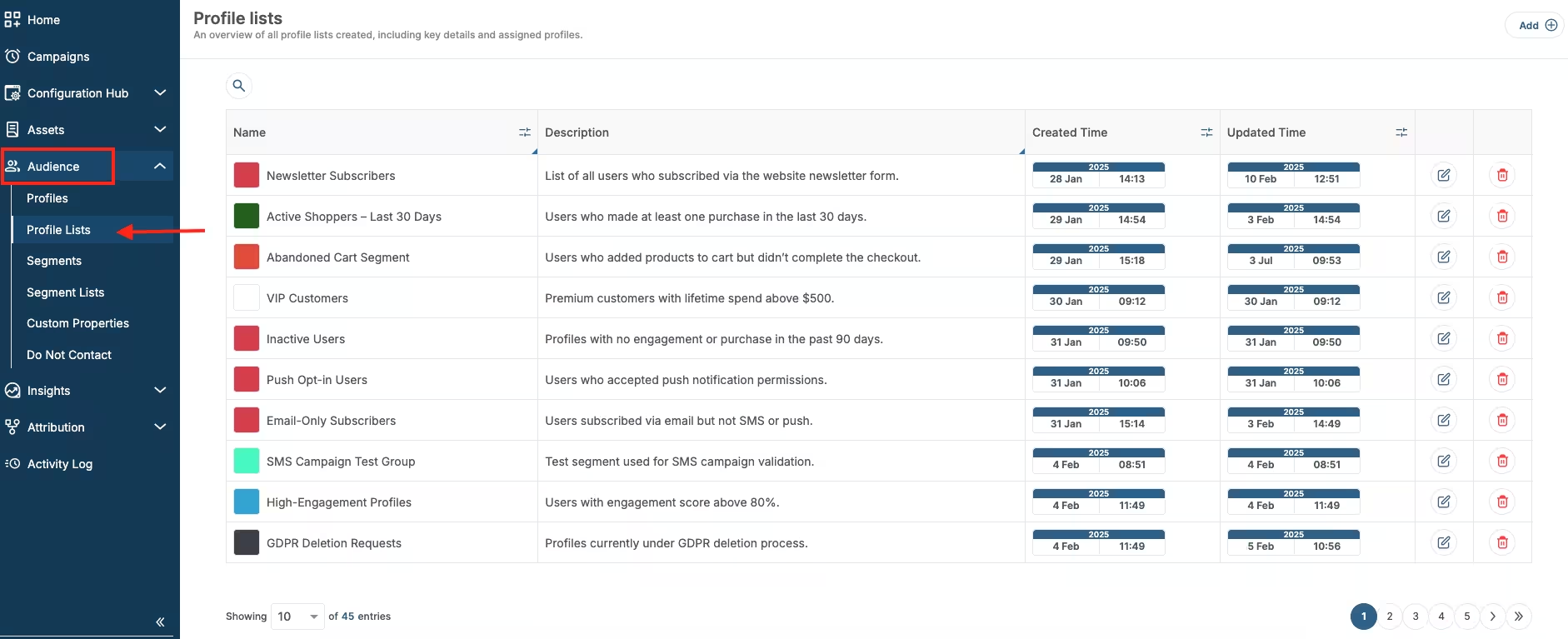
Profile list location
You can search profile lists by name. Use Filters to narrow the list by color, profiles, updated at, or created at.
Use the sort menu to choose how the list is ordered:
- Name (A-Z)
- Name (Z-A)
- Profiles (Lowest first)
- Profiles (Highest first)
- Updated at (Oldest first)
- Updated at (Newest first)
- Created at (Oldest first)
- Created at (Newest first)
Switch between Table and Cards to change how profile lists are displayed.
To edit an existing profile list, click on the Edit icon next to the list you want to edit.
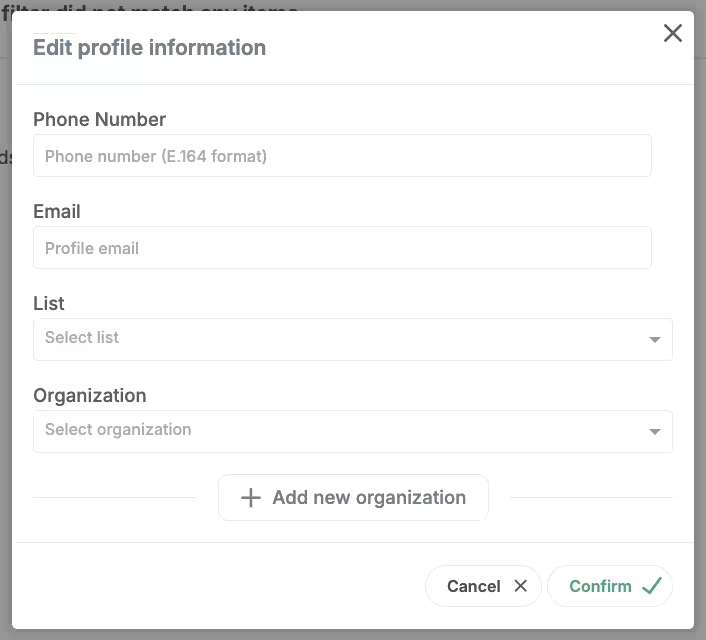
Edit profile info
To create a new list, click on the Create button in the top right corner.
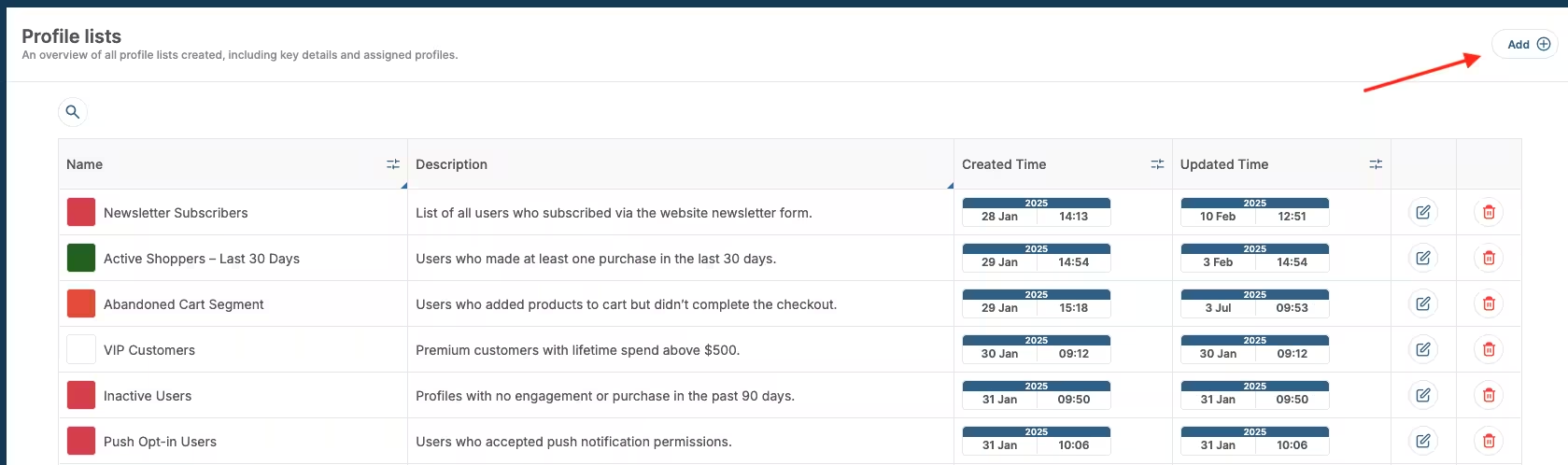
Create profile list
Add profile to profile list
To add profile to a profile list, go back to Audience > Profiles.
Click on the profile you wish to add, and in the top right corner, click Profile actions > Edit profile info.
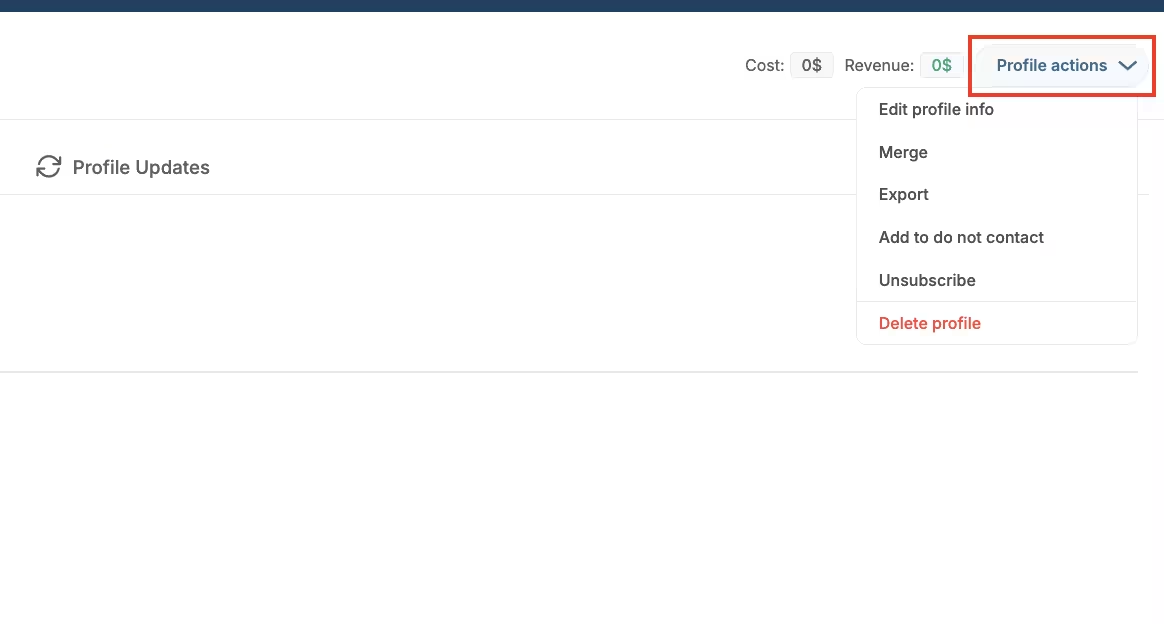
Profile actions
In the edit profile form, click on Lists, and choose a list to which you want to add profile.
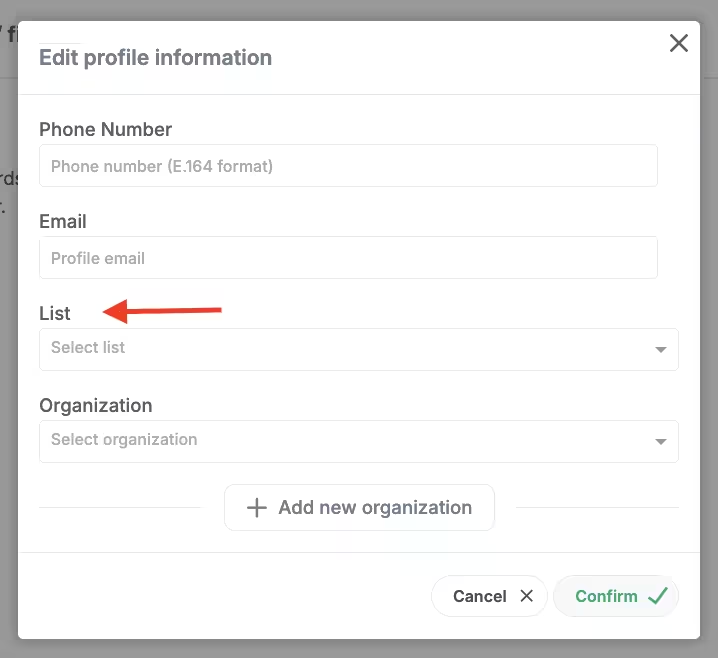
Add to list
Click Confirm to save the changes.
Using Profile lists for audience targeting
You can use profile lists to target audience.
Create the campaign in full. When the campaign is created, click the Audience tab in that campaign.
Choose Profile lists.
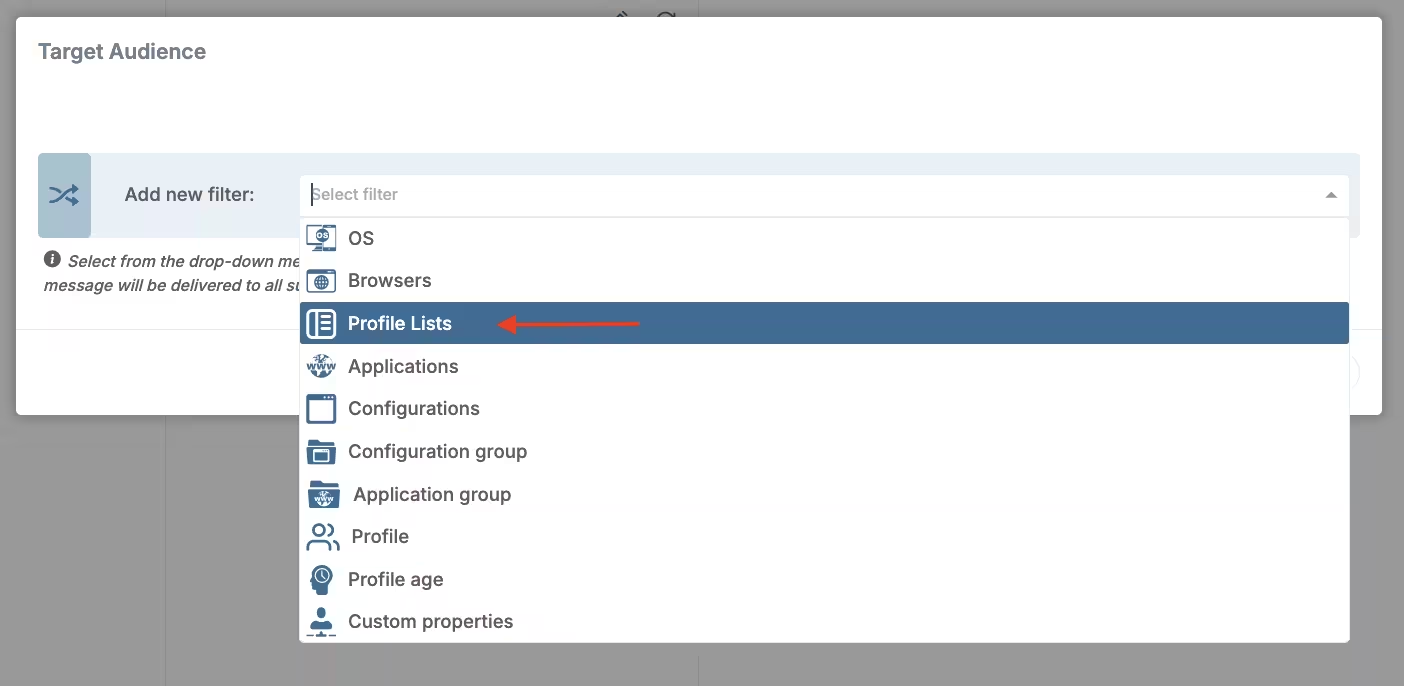
Target audience profile lists
Then, under Profile lists, choose IS or IS NOT. In Values, type to search and select the profile lists you want to include or exclude.
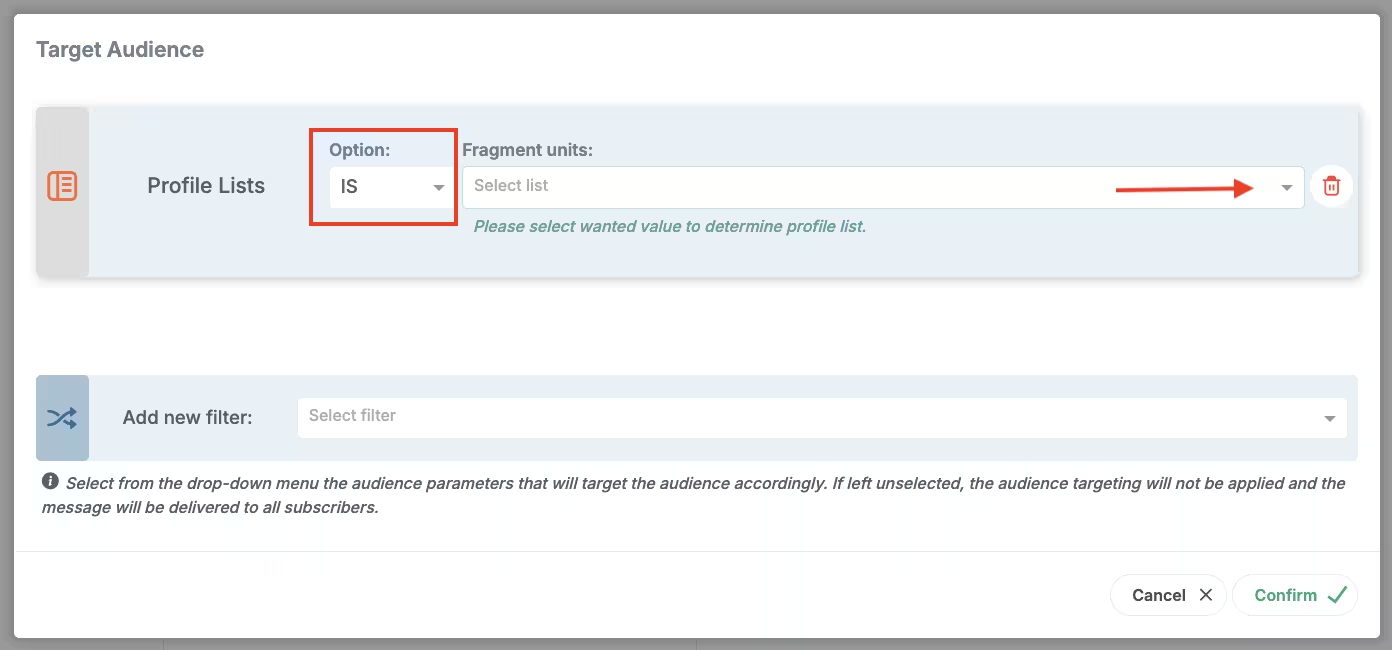
Profile lists pick list
Click Confirm to save changes.