
Profiles
In this article, you’ll learn how to:
- view and manage profiles;
- import, export, and add new profiles;
- create and manage profile lists;
- add profiles to profile lists.
Profiles overview
The Profiles tab in HoodEngage represents a repository of data on both subscribed profiles (subscribers) and non-subscribed profiles (visitors).
To access Profiles, navigate to Audience > Profiles.
When you click on it, you will find the list of all profiles in a tabular form.
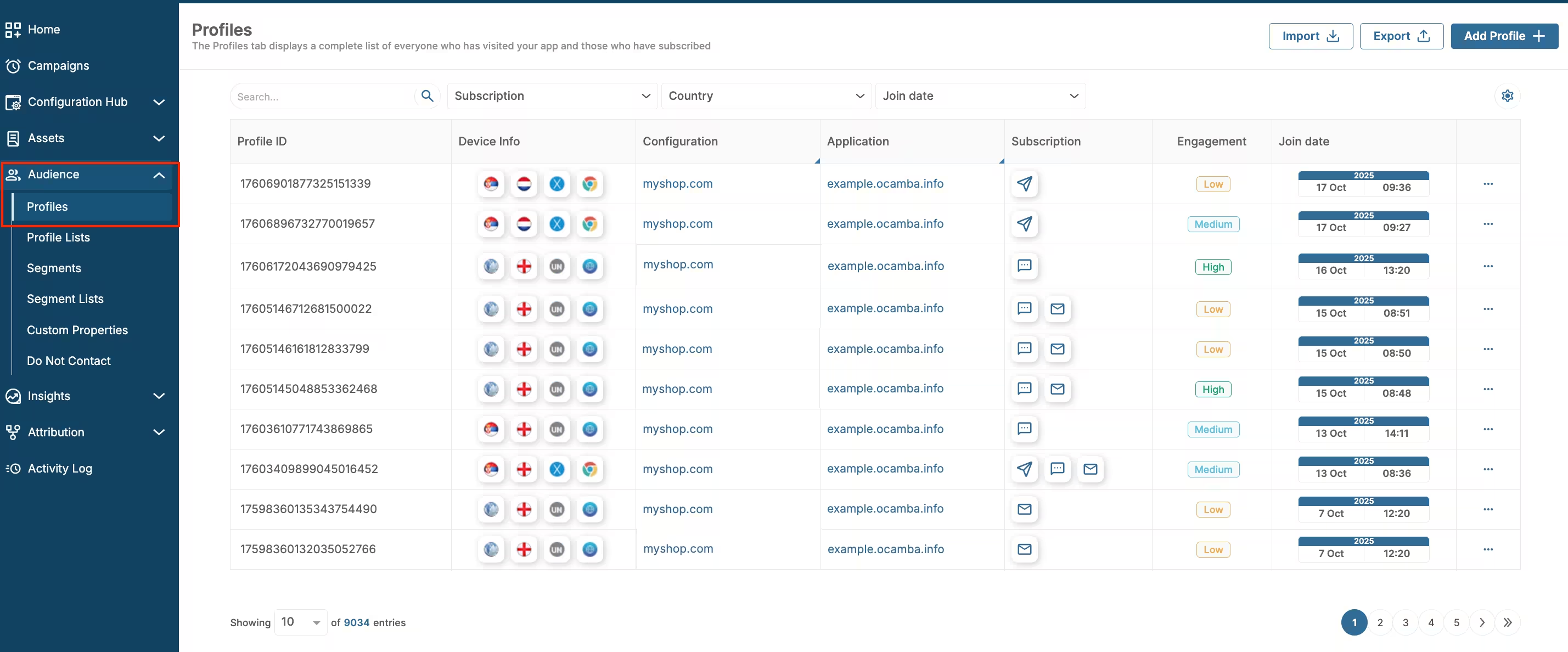
Profiles location overview
Above the table, use the search field to find a profile, or click Filters to filter the list by Subscription, Join date, or Application.
On the right side of the table, you can sort the list:
- ID (A–Z)
- ID (Z–A)
- Join date (Oldest first)
- Join date (Newest first)
- Application (A–Z)
- Application (Z–A)
To view specific profile or unsubscribe it, click on the 3 dots next to the profile on which you want to perform these actions.
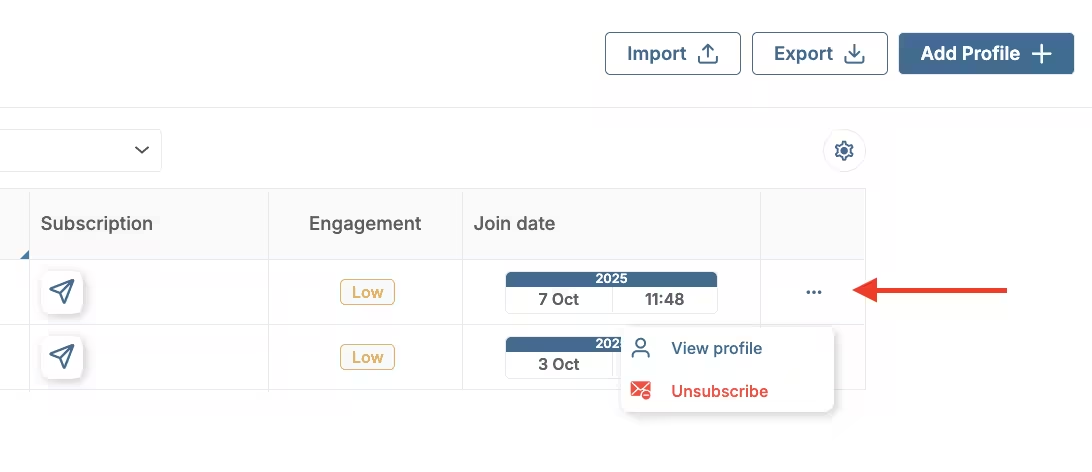
Unsubscribe profile
Also, on the same dashboard, in the top right corner, you will find Export, Import, and Create.
To export profiles, click Export. In the table, select the properties you want to include. Each row shows Type, Name, Example, Export as, and Description. When the selection is ready, click Export as CSV, Export as JSON, or Export as XLSX.
To import profiles, click Import. Upload a CSV or Excel file by dragging it into the window or clicking to browse. The maximum file size is 50 MB.
You can assign the imported profiles to up to 10 profile lists. This step is optional.
Before you click Import now, confirm that the contacts meet the consent requirements.
Create new profile
To add a new profile, click Create in the top right corner.
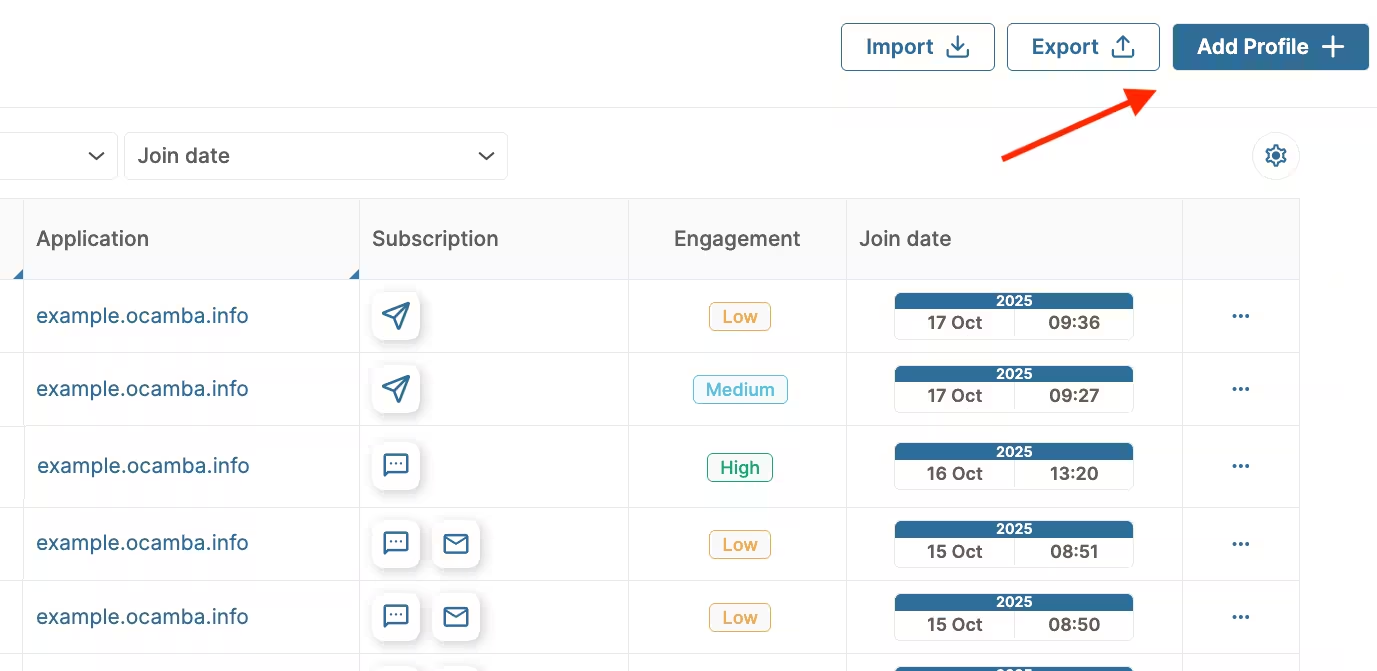
Create new profile
Then, enter profile’s information next to the appropriate fields. Click Confirm to save the input.
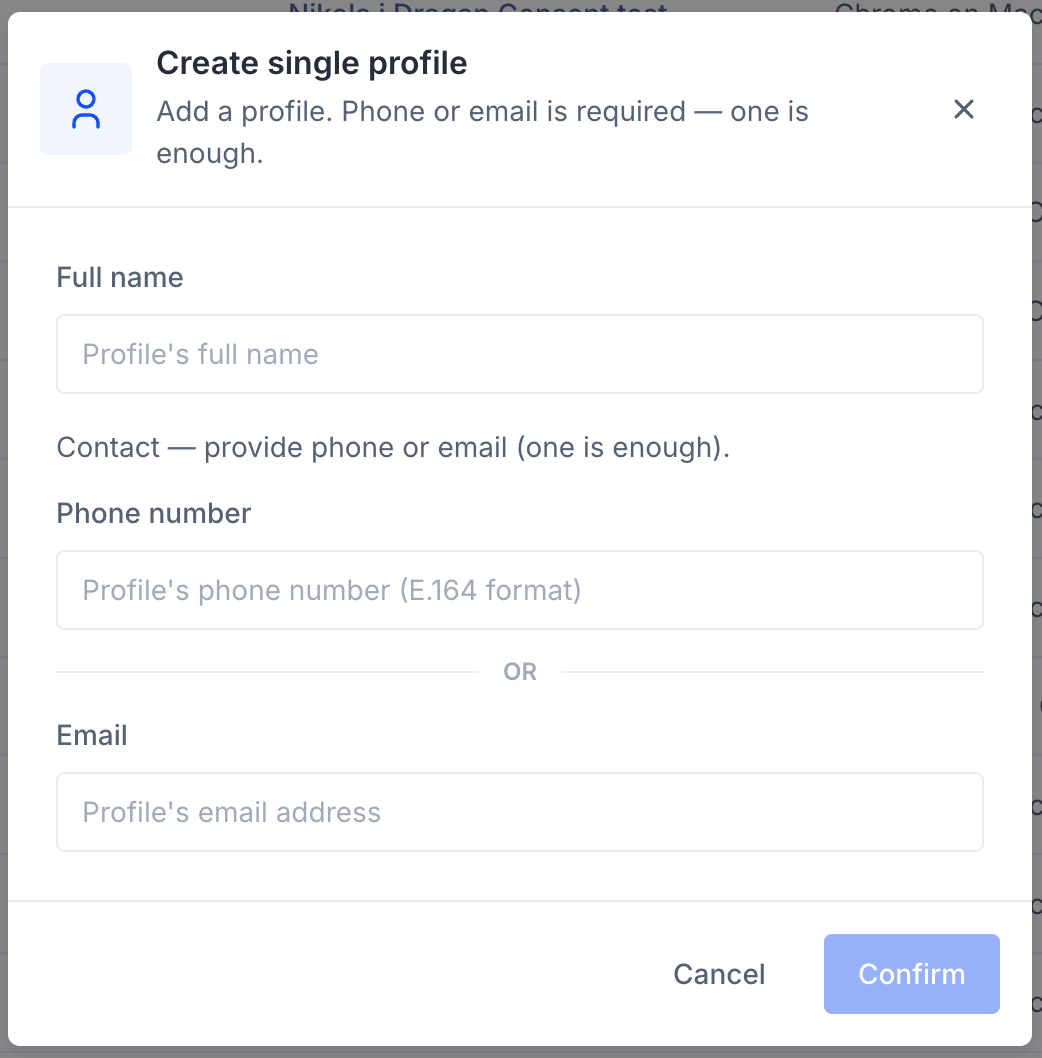
Create single profile
Profile details
To learn more about a specific profile, click on it.
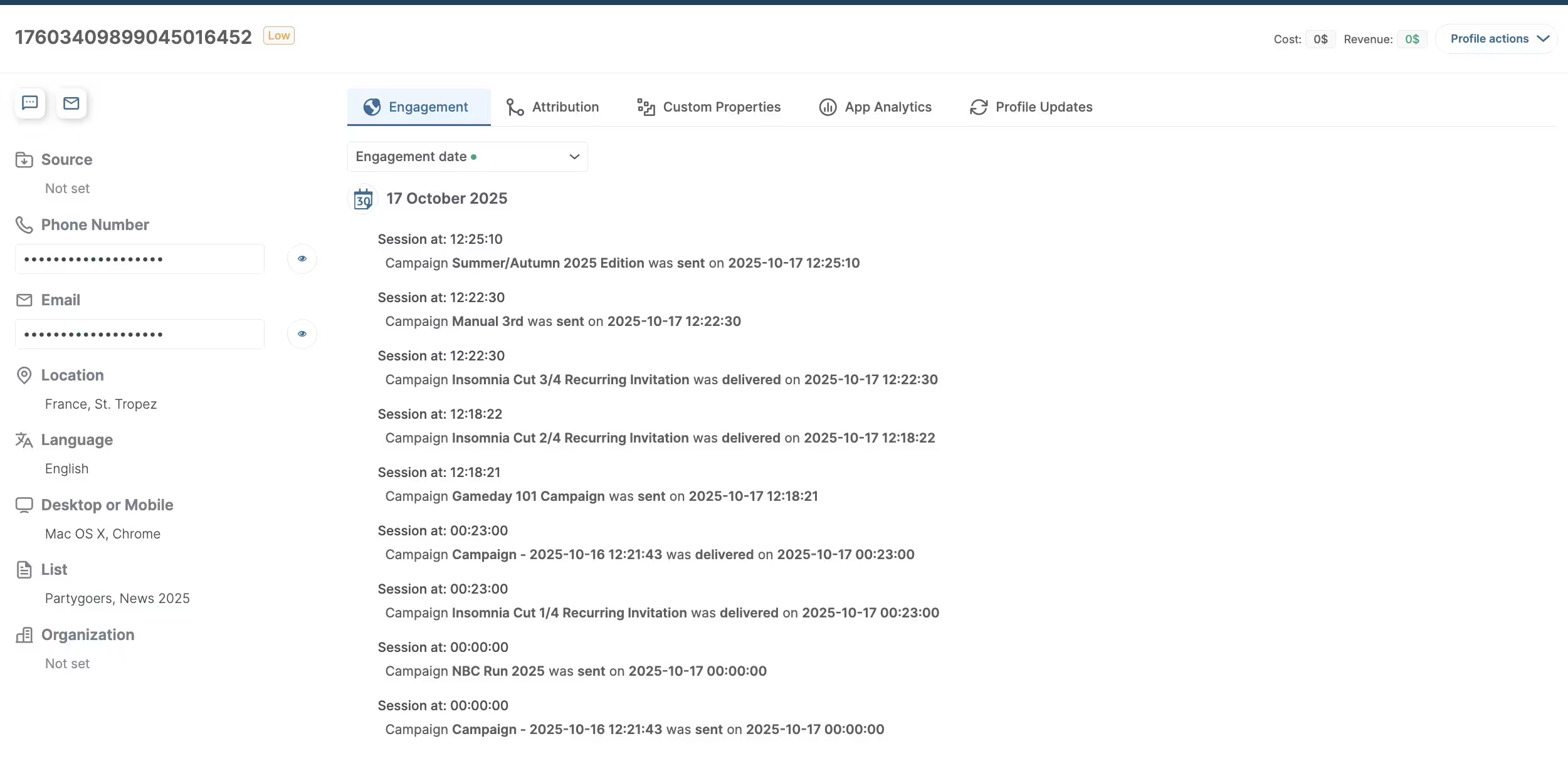
Profile details tabs
Here you will find the profile ID at the top of the page. On the left, Basics shows where the profile came from and how it is set up: Source, Location, Language, and Device, along with the Lists and Organization it belongs to.
Across the top are four tabs: Overview, Engagement, App analytics, and Profile updates. Stay on Overview for a summary of the profile.
Engagement shows direct and campaign activity, grouped by session and date, so you can follow what this profile did and when.
App analytics shows pageviews and conversion events recorded for this profile.
Profile updates shows how the profile’s fields and membership have changed over time.
On Overview, Communication channels is where you see Push, Email, and SMS. Each row shows whether the profile is subscribed, and the device or address on file when there is one. Send push, Send email, and Send sms open a composer for that channel, so you can message the profile without leaving the page.
Attribution keeps the original acquisition context. It shows Source, Campaign, Content, Term, Medium, and Referrer, plus the First page the profile landed on. From that address you can copy the link or open the page.
Custom properties show an insight into which custom data has been set for the profile. Custom properties are key-value pairs that store user-specific parameters and preferences, allowing you to create more personalized and relevant campaigns. Learn more about using custom properties for targeting. Use Add property when you want to add a new key and value on this profile.
Quick targeting examples with custom properties
Custom properties enable powerful targeting capabilities right from the Profiles tab. Popular use cases include:
• Subscription-based targeting: Target users withsubscription_tier: premiumfor exclusive offers or early access.
• Product preference targeting: Usefavourite_category: electronicsto send relevant product recommendations.
• Behavioral targeting: Reach users withlast_purchase_dateequal to a specific date for precise re-engagement.
Profile actions
In the top right corner, there’s Profile actions button.
By clicking on it, you will get a list of actions you can perform on that spectific profile.
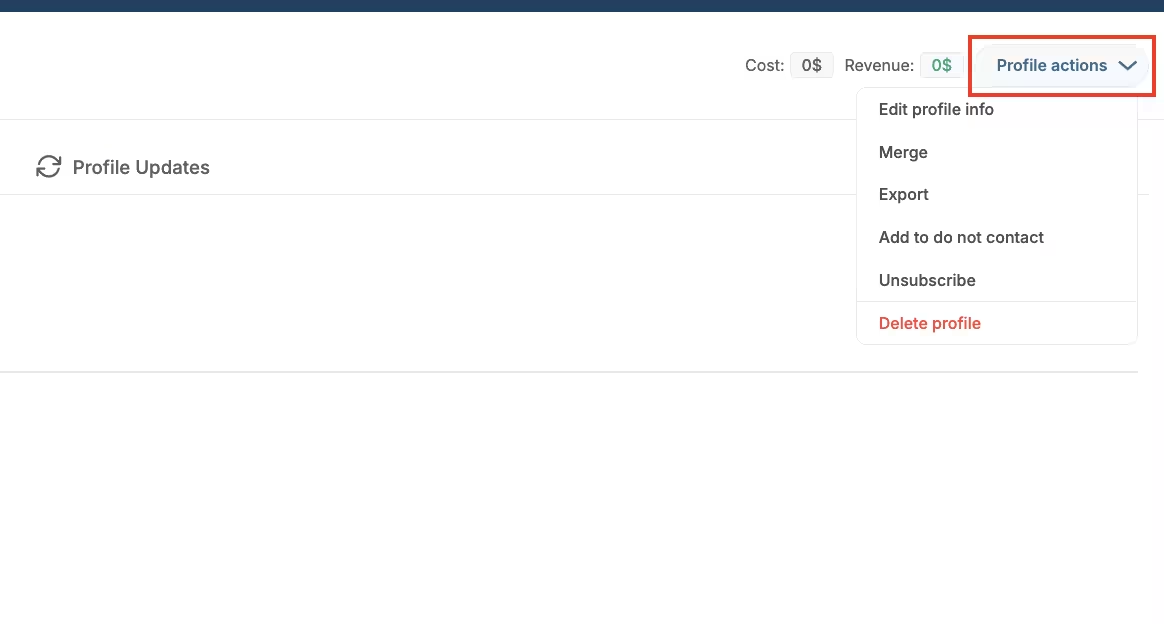
Profile actions
The actions you can perform on a specific profile are:
- Edit profile info
- Merge
- Export
- Unsubscribe profile
- Delete profile
Click Edit profile info to update the contact details, lists, and organization for this profile. The window opens on Lists. On the left you can also open Basics and Organization. Click Save changes when you are done, or Cancel to leave without saving.
Lists is where you choose one or more existing lists from Select lists. You can also add a new list here: enter a list name and, if you want, a description. The new list is created and assigned to this profile.
Under Basics, you can set the full name, email, and phone number. When you enter a phone number, it must be in E.164 format.
Under Organization, choose an existing organization from Select organization, or add a new one. For a new organization, enter its name and domain.
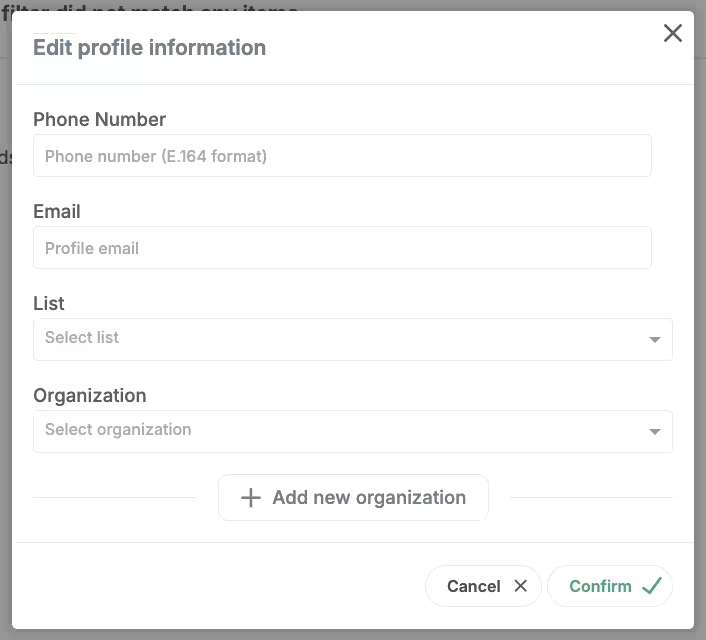
Edit profile info
Click on Merge to join this profile with another one. Choose the profile to merge the selected profile with.
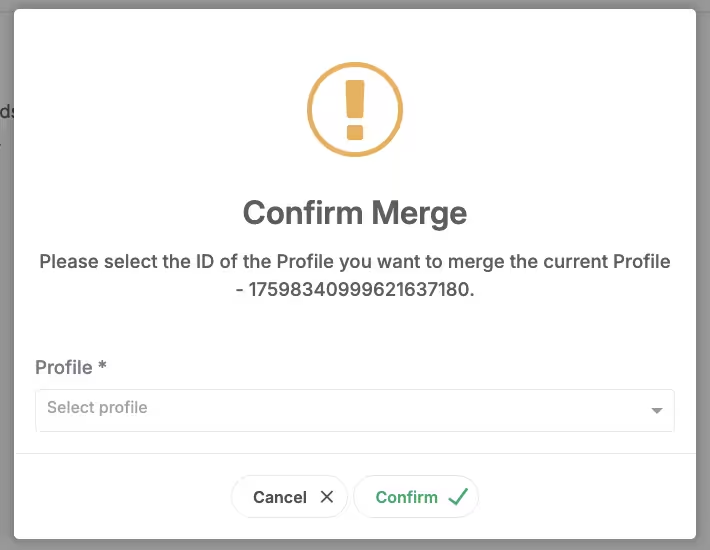
Merge profile
Click Export to choose which properties to include for this profile. In the table, select the rows you want. Each row shows Type, Name, Example, Export as, and Description. You can search the list at the top. When the selection is ready, click Export as XLSX, Export as JSON, or Export as CSV.
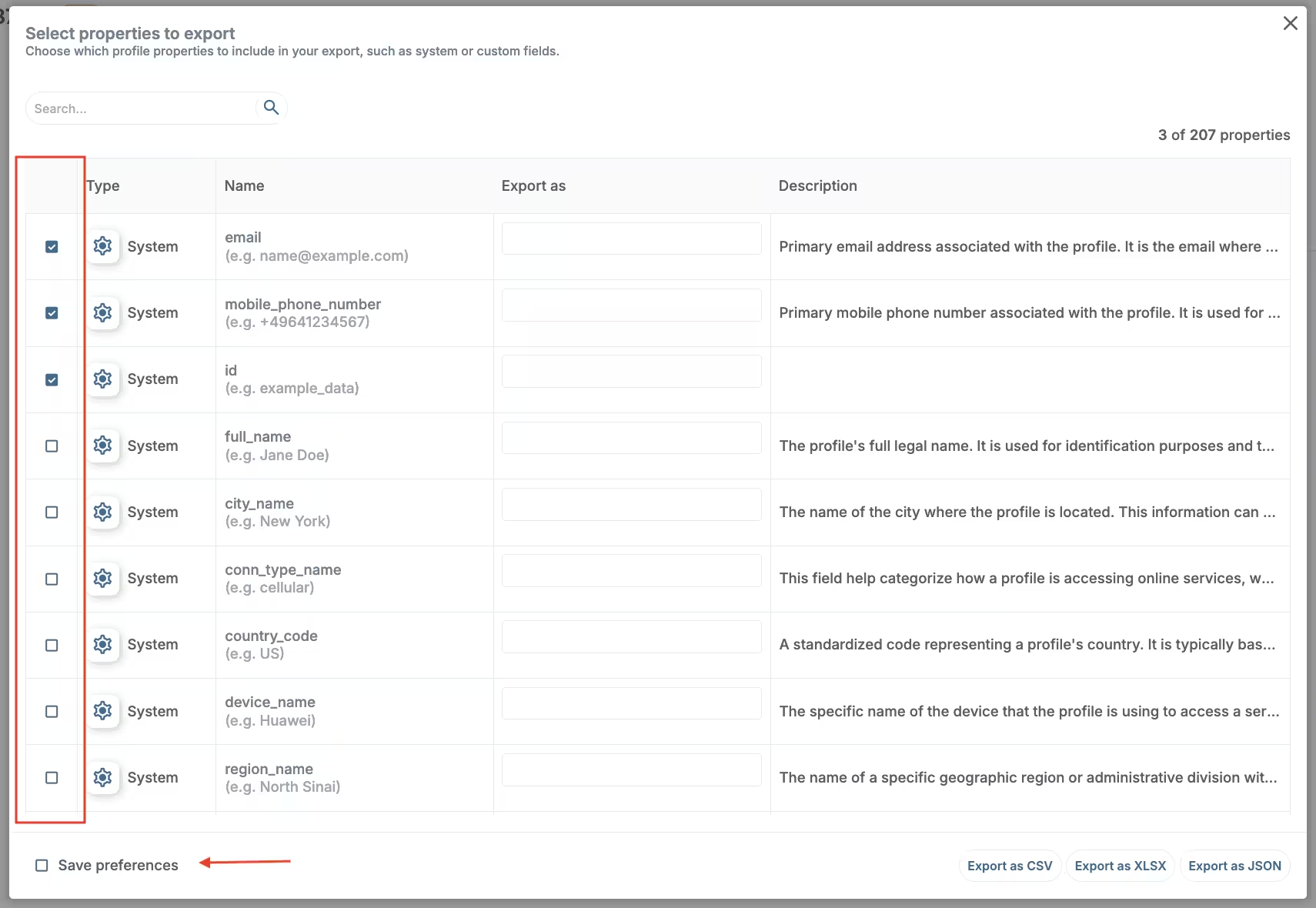
Export profile
Finally, under the same button, you can choose Unsubscribe profile or Delete profile.