
Segments & Segment lists
In this article, you’ll learn how to:
- View and manage existing segments;
- Create new segments with targeting criteria;
- Delete segments and segment lists;
- Create and manage segment lists;
- Add segments to segment lists.
Segments overview
To access Segments, navigate to Audience > Segments.
Here, you will find an overview of all your segments with the name, ID, status, and targeting.
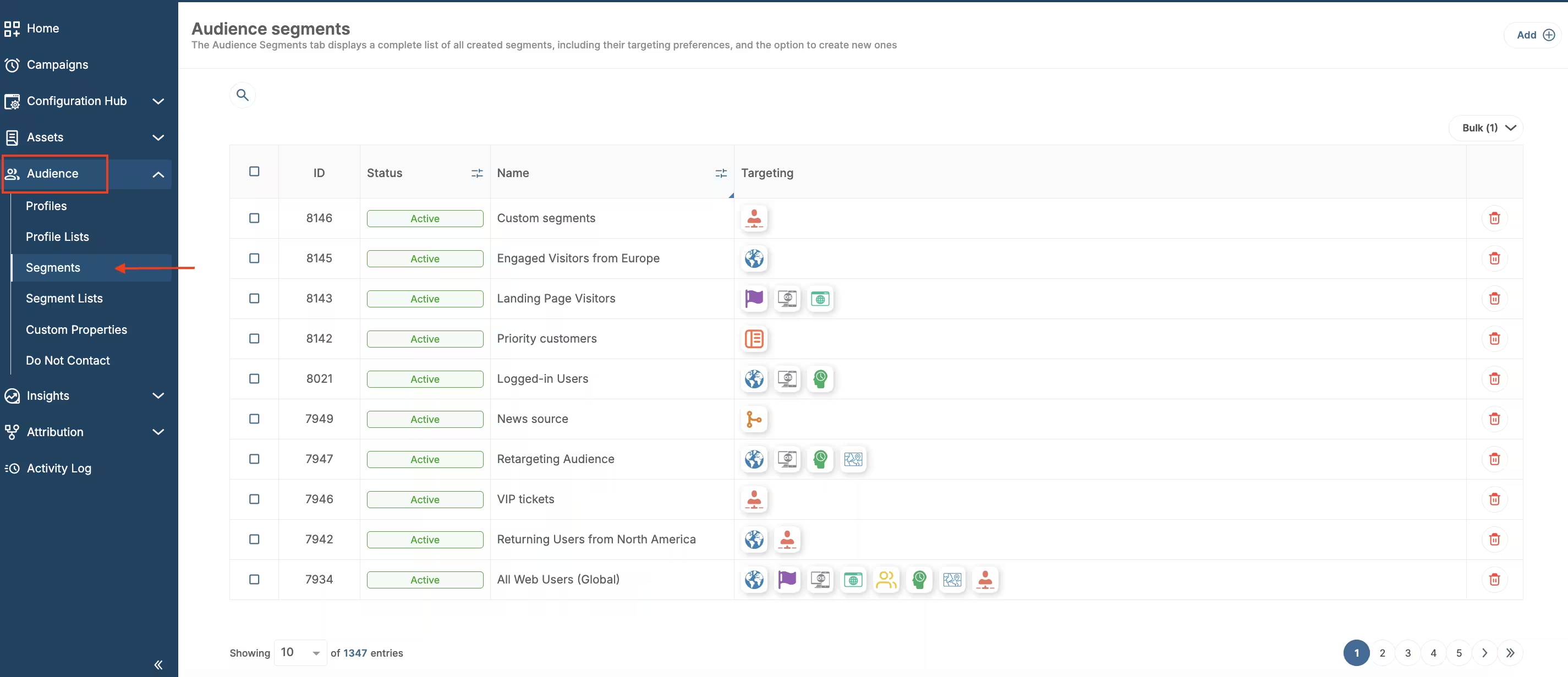
Segments location overview
To delete a segment, click on the delete icon next to it.
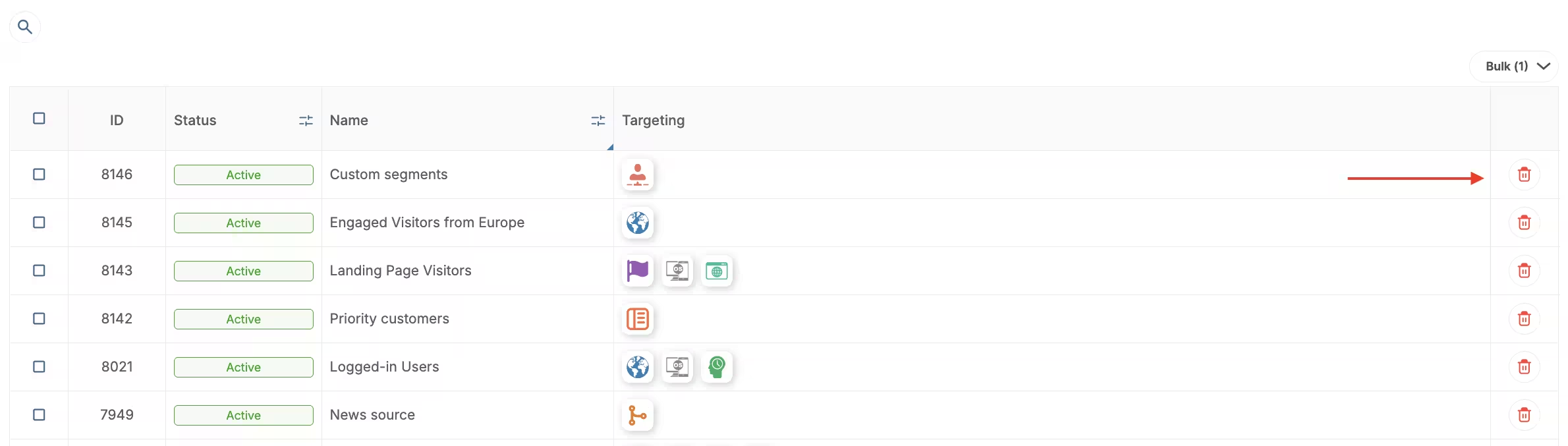
Delete segment
Create segment
To create a new segment, click Create in the top right corner.
Enter a name, set the Active toggle, and choose a filter from Select filter. Click Create to save the segment.
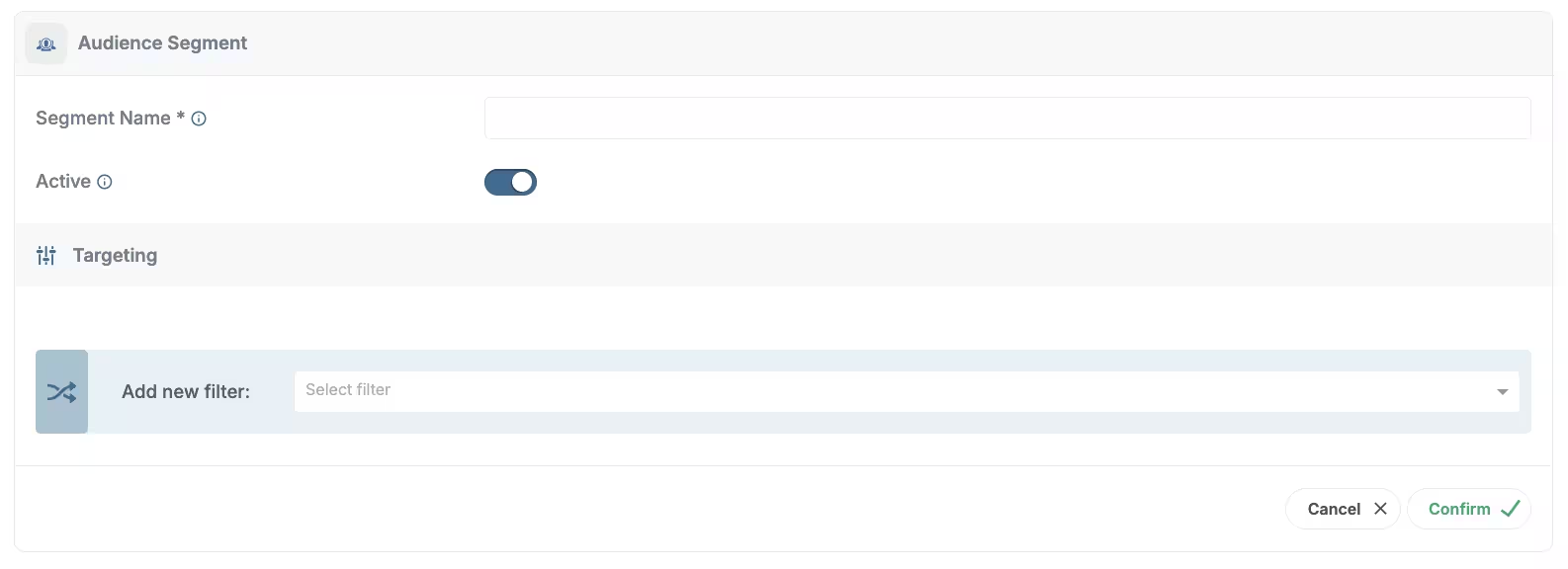
Create segment
HoodEngage offers 17 targeting options:
- Source: Target profiles based on how they were acquired (e.g., website, app, campaign, etc.)
- Countries: Segment by specific countries where profiles are located
- Remote ID: Target profiles using external system identifiers
- Cities: Group profiles by cities
- Regions: Group profiles by geographic regions or states
- Languages: Segment based on user’s preferred language settings
- OS: Target profiles by their operating system (iOS, Android, Windows, etc.)
- Browsers: Segment users by their web browser (Chrome, Safari, Firefox, etc.)
- Profile lists: Include or exclude profiles from existing profile lists
- Applications: Segment by specific apps or platforms where profiles are active
- Partners: Target profiles associated with specific partner integrations
- Configurations: Target profiles using specific configuration settings
- Configuration groups: Target profiles based on configuration group assignments
- Application groups: Segment by application group memberships
- Profile: Target individual profiles by their unique profile identifiers
- Profile age: Segment based on how long profiles have been in the system (days, weeks, months)
- Custom Properties: Target profiles using custom data fields and their values
Also, the filters have parameters like IS and IS NOT to specify a condition or filtering data (except for Profile age and Custom Properties):
Edit existing segment
Click on the segment that you want to edit.
You can edit segment’s name, switch toggle button to active or inactive (status), and change targeting criteria.
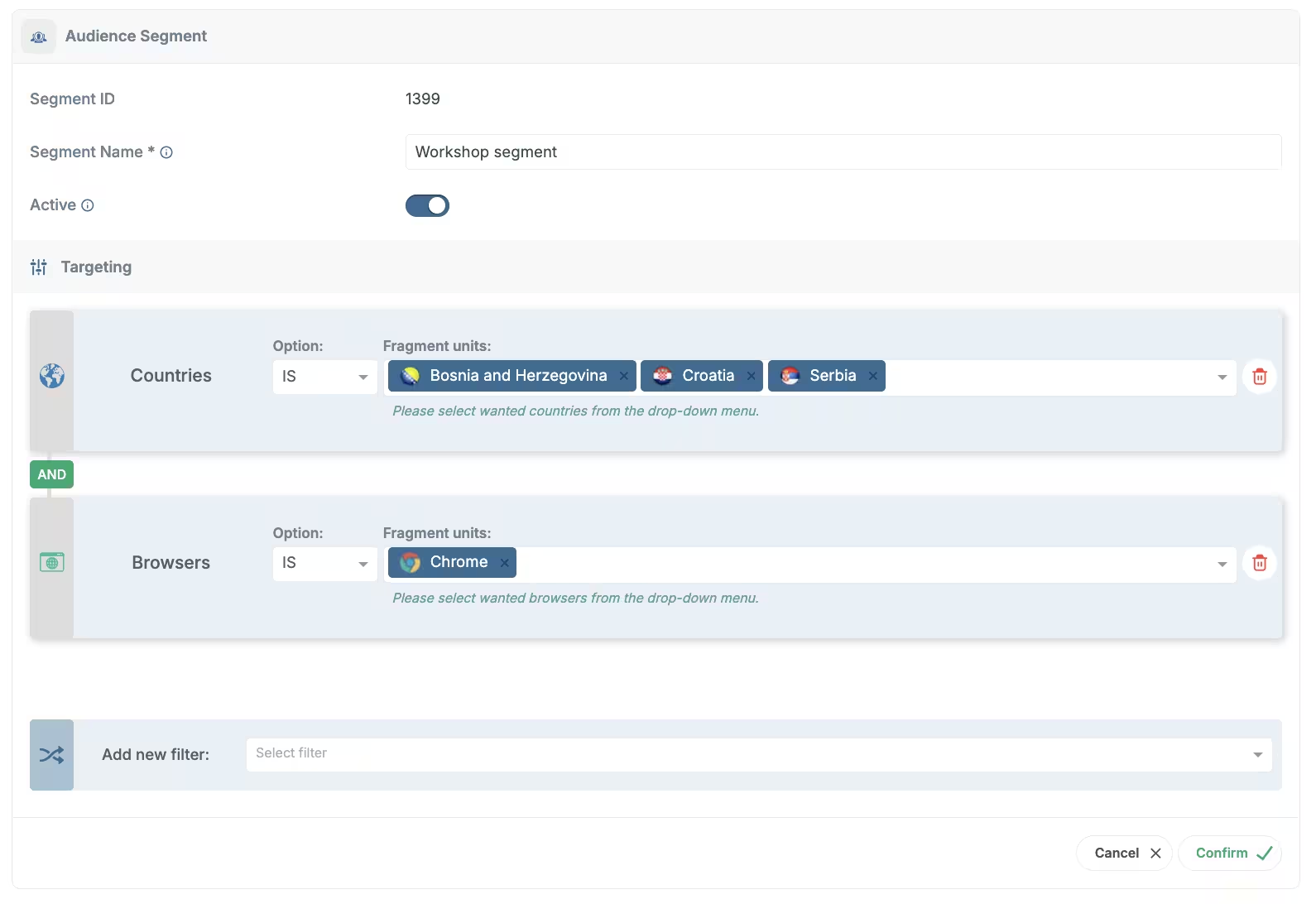
Edit segment
Once completed, click Save changes.
Segment lists
Segment lists are organizational containers that group related segments together for more precise targeting.
To access Segment lists, navigate to Audience > Segment lists.
Here, you will see an overview of your segment lists with key details.
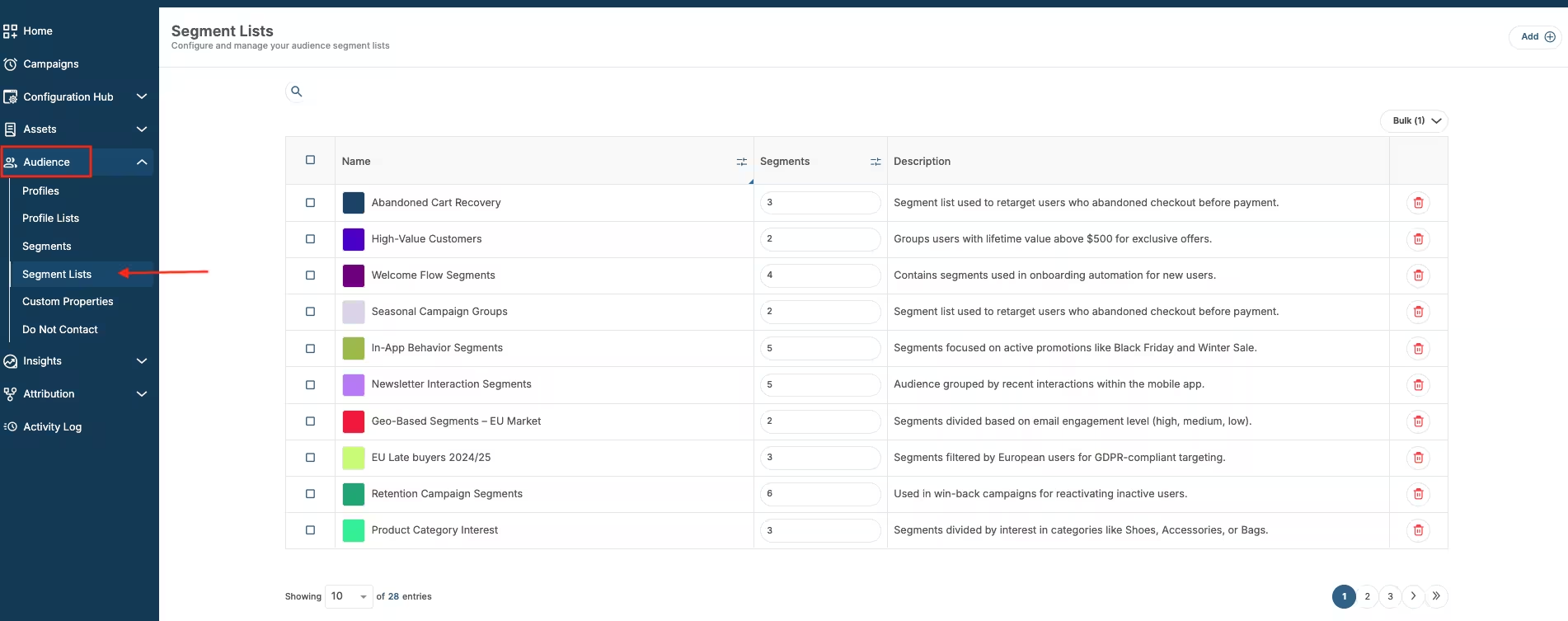
Segments lists location overview
To delete a segment list, click the three dots on the row and choose Delete.
To create a new segment list, click Create in the top right corner.
Enter a Name, choose a Color, and add an optional Description. On the right, search for segments and click + to add them. Selected segments appear under Selected segments. Click × on a segment to remove it.
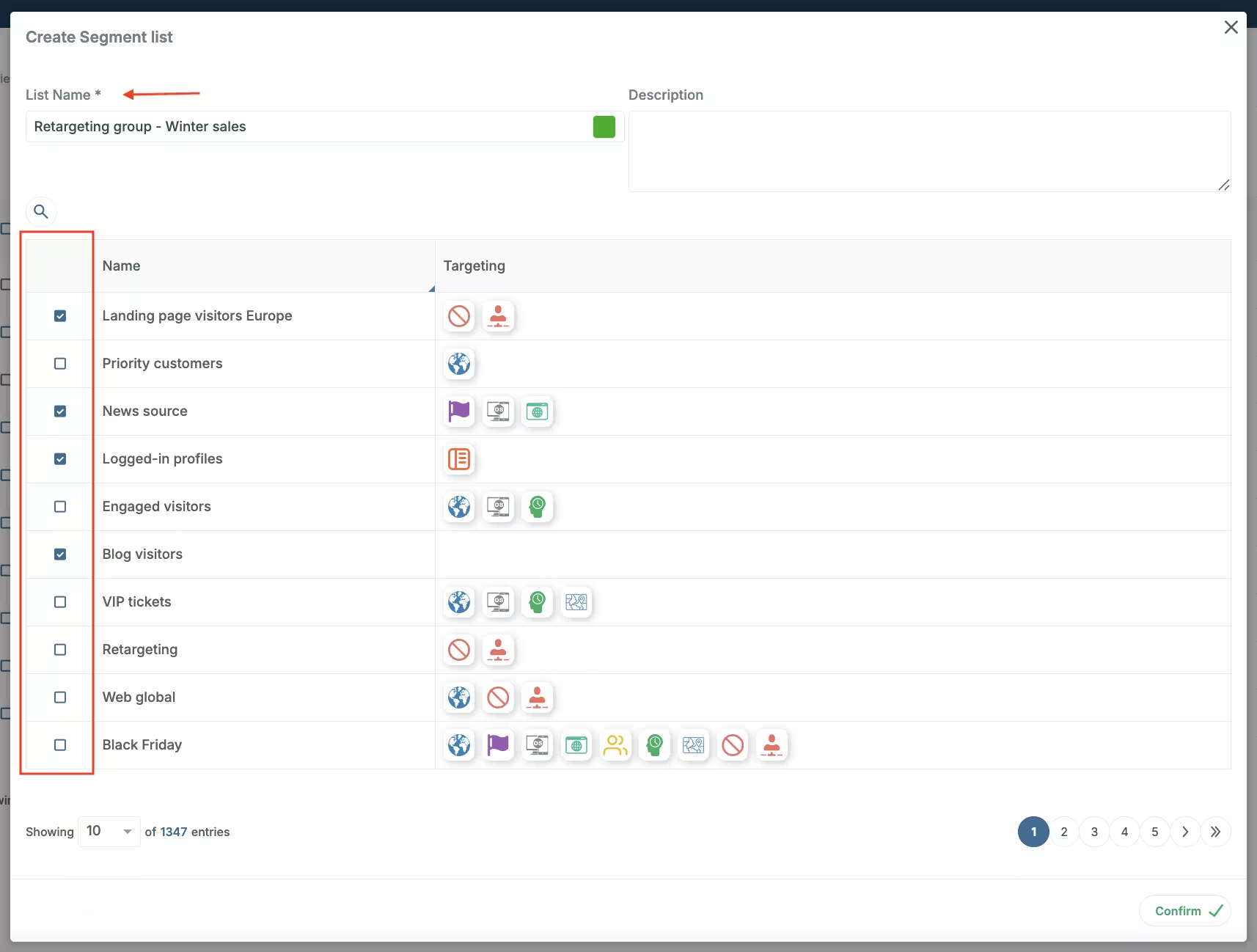
Create segment list
Once completed, click Create.
Using Segments and Segments lists in Campaigns
Both segments and segment lists can be used in Campaigns to target audience with more precision.
Create the campaign in full. When the campaign is created, click the Audience tab in that campaign.
Choose Audience segments for segments and/or Audience lists for segment lists.
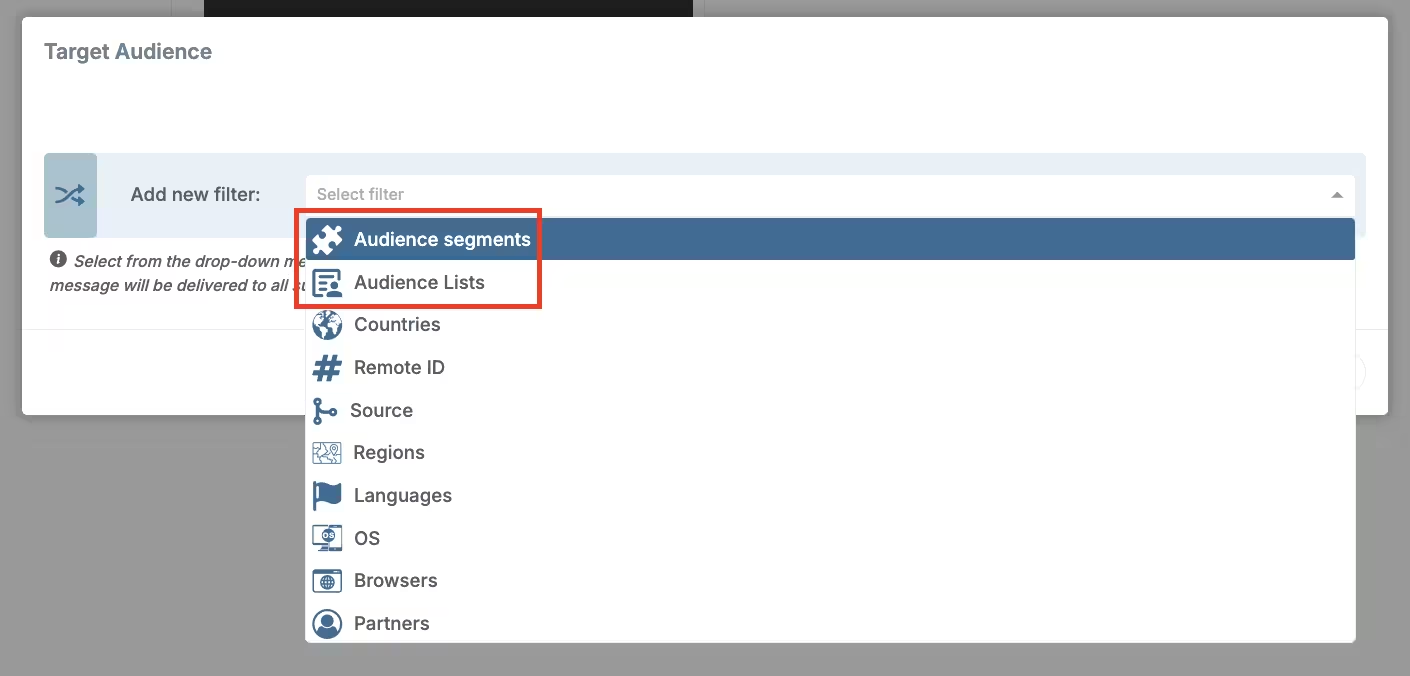
Target audience segments or lists
Then, under Audience segments or Audience lists, choose IS or IS NOT, and then one or more segments or segment lists you want to include or exclude.
Click Confirm to save changes.