
Mailchimp email setup instructions
Follow these instructions to configure and send Mailchimp email messages using HoodEngage.
Requirements
Before starting, ensure you have:
- A Mailchimp account
- Mailchimp (formerly Mandrill) Transactional Email Plan added to your account
- An Ocamba Account
- A domain you own and access to your DNS provider
Step 1: Configure your domain for email
1.1 Add your domain in Mailchimp
- Go to the Mailchimp Transactional Email tool (formerly Mandrill)
- Navigate to Settings > Domains > Sending Domains
- Add your domain if you haven’t done so already
1.2 Get DNS settings
- Once your domain is added, click View DKIM/SPF Setup Instructions to get the DNS settings
- Optionally, verify your domain by clicking View details and receiving an email to your domain
1.3 Update DNS records
- Follow Mailchimp’s instructions to update your DNS records with your domain host
- Wait for DNS changes to propagate (this may take up to 48 hours)
- Mailchimp will email you once your domain is verified
Step 2: Create API key
2.1 Generate API key
- In Mailchimp’s Transactional Email Tool (formerly Mandrill), go to Settings
- Click + New API Key
- Optionally, name your API key something recognizable like “Ocamba API Key”
- Once the API key is created, copy it to your clipboard
- Also note your SMTP Username
Step 3: Configure Mailchimp in HoodEngage
3.1 Access email settings
In your HoodEngage dashboard, navigate to HoodEngage Settings > Email in the top right corner.
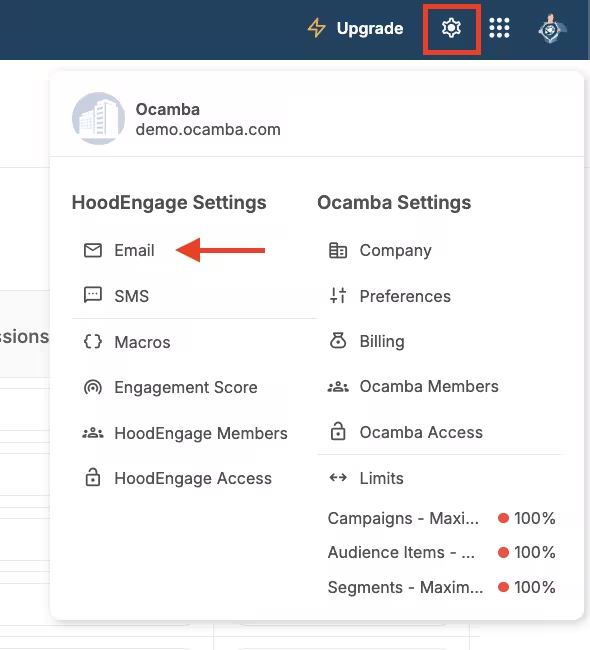
Email setup location in the navigation
Here, you can see the overview of all your email configurations.
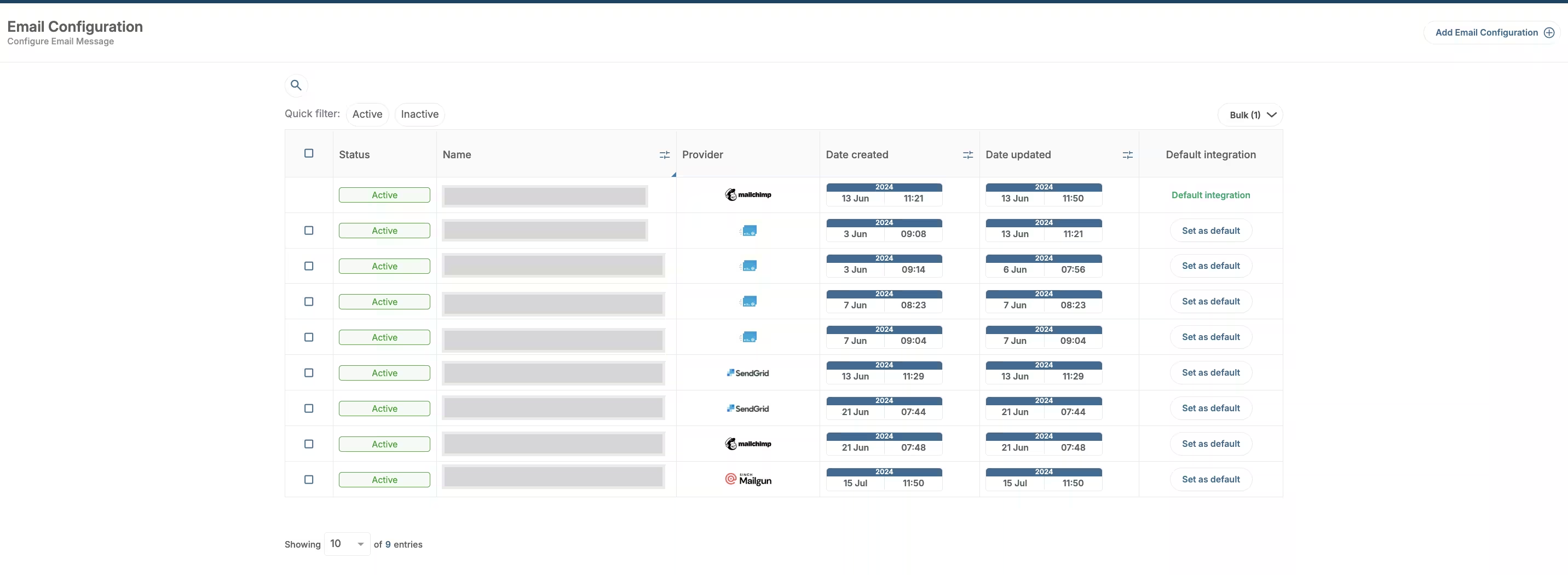
Email setup overview
3.2 Add new email configuration
- Click on the Add email configuration button in the top right corner
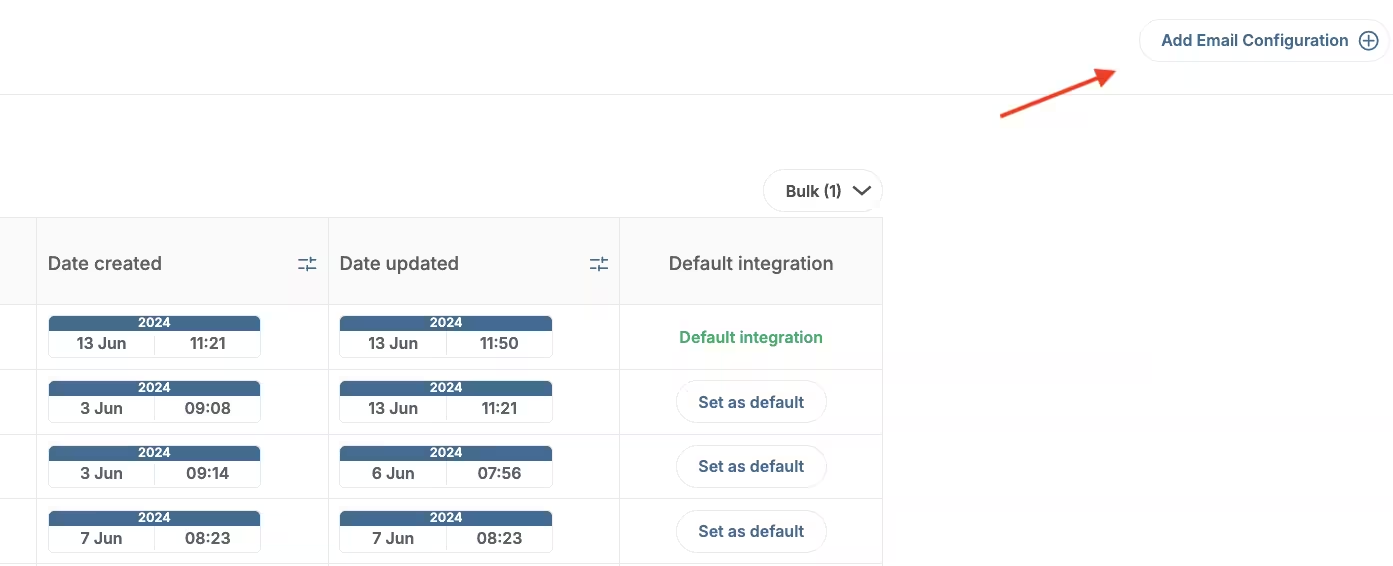
Add new email configuration
- Fill out the integration name
- Switch the toggle button to Active
- Choose Mailchimp as provider
- Paste in the API key and SMTP Username you copied earlier
- Add the default name and email address you want your emails to come from
- Click Validate to verify your configuration
Step 4: Set as default (optional)
To set your Mailchimp configuration as default:
- Go to the email configurations overview
- Click on the Set as default button next to your Mailchimp configuration
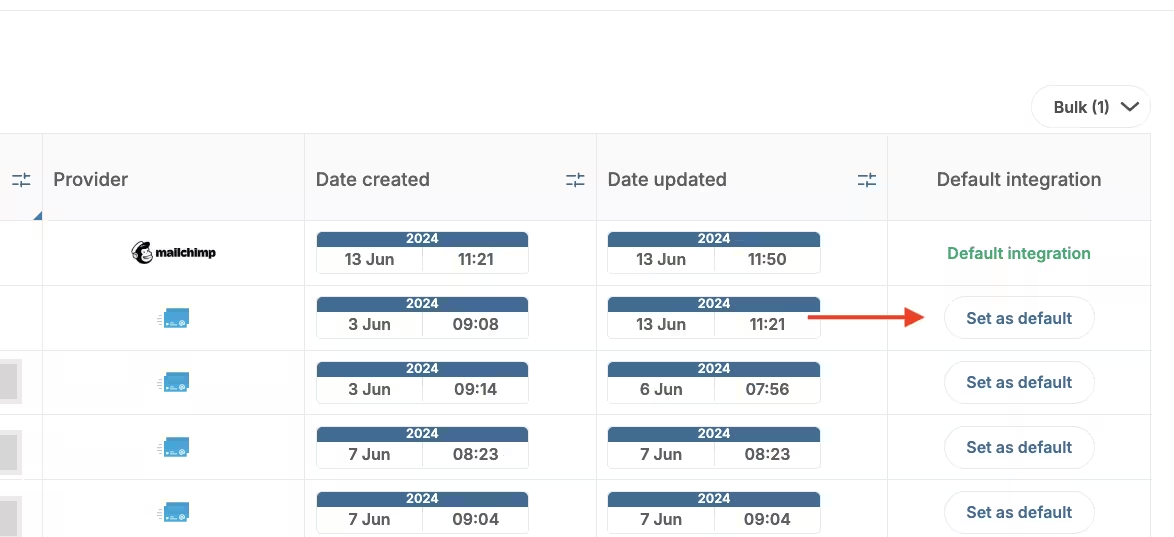
Email configuration - Set as default
Setting a configuration as default means it will appear first as an option when sending emails in Campaigns.
Step 5: Add subscribers
You can add email subscribers using several methods:
- Dashboard Upload — Upload a CSV of emails and user data or manually add emails
- Server API — Programmatically add emails server-side
- SDK Method — Add emails using our client-side SDK (recommended if using our SDKs for push or in-app messaging)
- Email Web Prompt — Use a web prompt to collect email addresses and phone numbers
Step 6: Send a test email
- In HoodEngage, navigate to Messages > Email
- Select New Email
- Add a subject line
- Click Send Test Email
- Input your email address and press Send Test Message
An email should arrive in your inbox shortly, confirming your setup is complete!
Troubleshooting
API Key validation fails
Cause: The API key may be incorrect or expired.
Fix:
- Double-check you copied the entire API key without extra spaces
- Verify the API key is from the Transactional Email tool (Mandrill), not regular Mailchimp
- Generate a new API key if needed
Domain not verified
Cause: DNS records haven’t propagated yet.
Fix:
- Wait up to 48 hours for DNS propagation
- Verify you added the correct TXT and CNAME records
- Use a DNS lookup tool to check if records are visible
Emails not being delivered
Cause: Domain verification incomplete or sender reputation issues.
Fix:
- Ensure your domain is fully verified in Mailchimp
- Check Mailchimp’s sending activity for bounces or blocks
- Verify your sender email matches your verified domain