
Mailgun email setup
Follow these instructions to configure and send Mailgun email messages using HoodEngage.
Requirements
Before starting, ensure you have:
- A Mailgun account
- An Ocamba Account
- A domain you own and access to your DNS provider
Step 1: Create a Mailgun account
- Visit the Mailgun website and sign up for an account
- Verify your email address to activate the account
Step 2: Add your domain to Mailgun
- Log in to your Mailgun account
- Navigate to Domains and click Add new domain in the top right corner

Add new domain button location in Mailgun
- Enter your domain name and select your region
- Click Add Domain to complete the process
Step 3: Verify your domain
3.1 Get DNS records
- On the left panel, navigate to Send > Sending > Domain Settings > DNS Records
- You’ll see the required DNS records to add to your domain
3.2 Update DNS settings
- Add the TXT records to your domain’s DNS settings
- Add the MX records to your domain’s DNS settings
- In the top-right corner, click Verify DNS settings
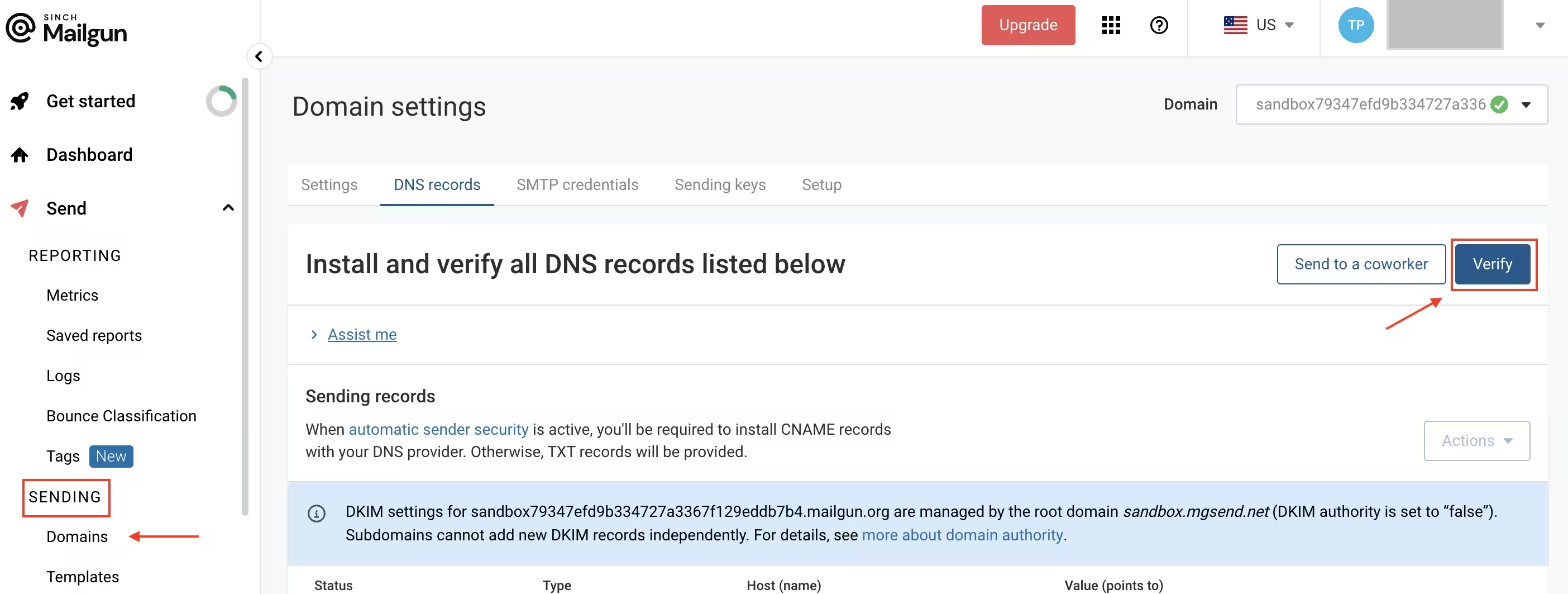
Verify DNS settings button location
Step 4: Generate API keys
- Navigate to Dashboard > API keys
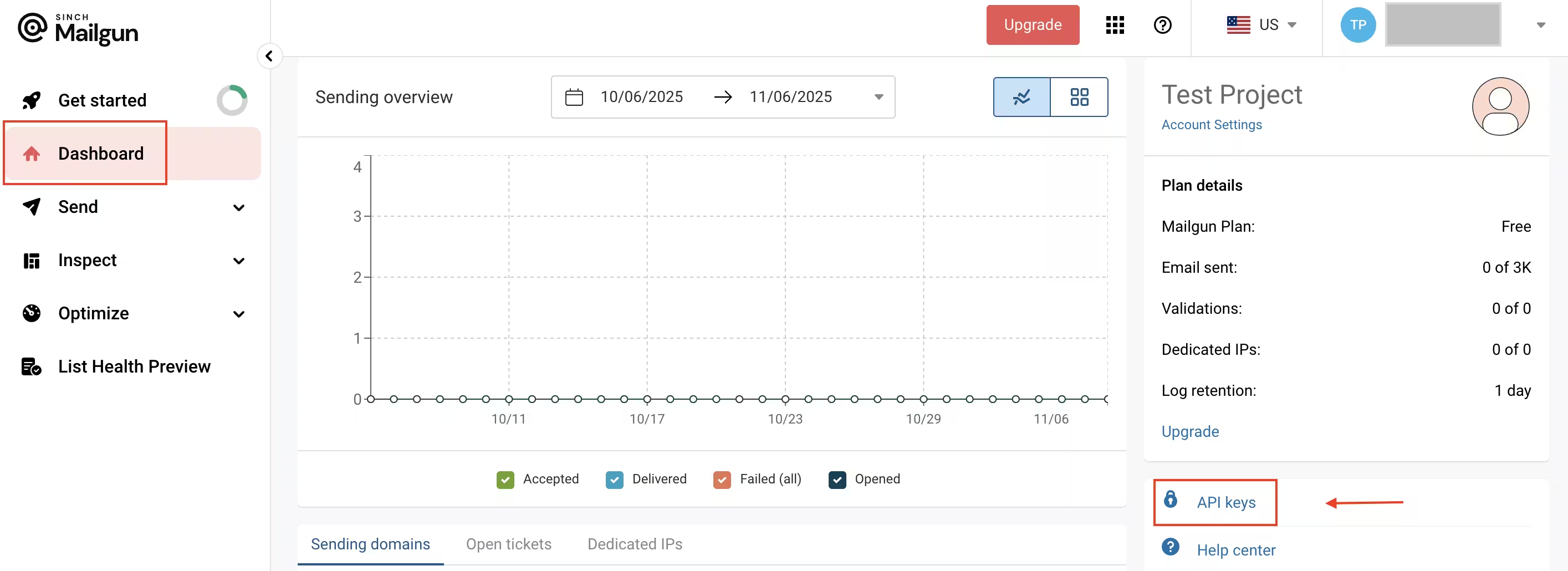
API Keys option location in Mailgun
- Here you’ll find your API keys
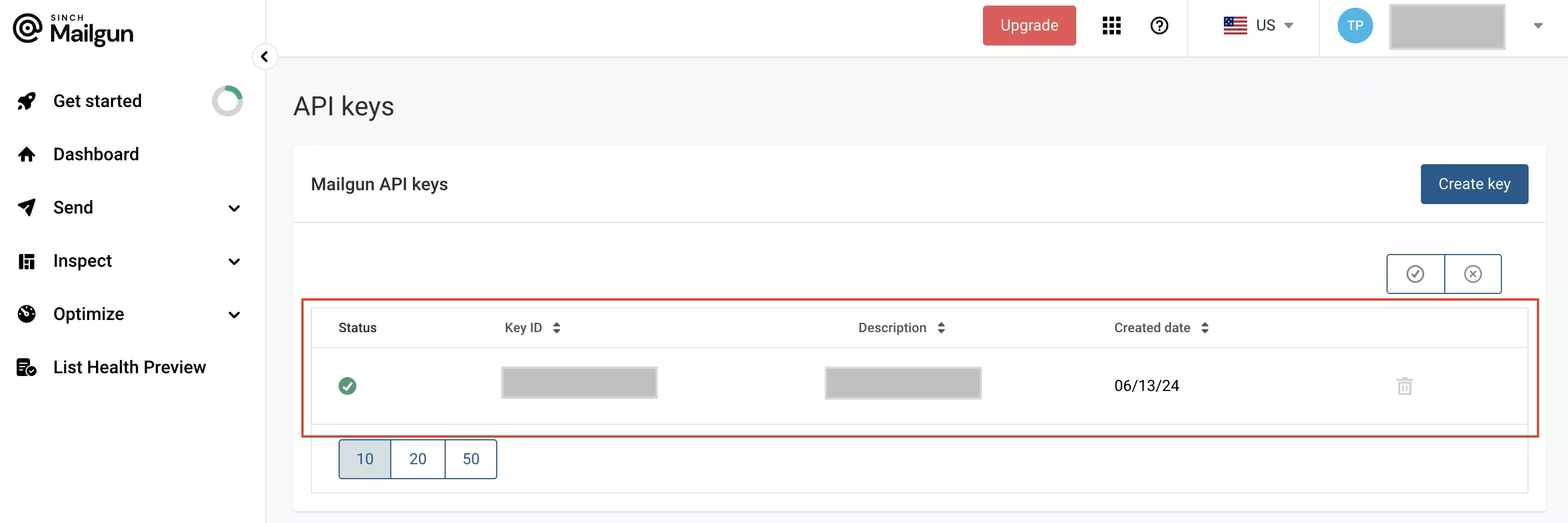
Mailgun API keys
- Copy your private API key
Step 5: Configure Mailgun in HoodEngage
5.1 Access email settings
Use this shared guide to access HoodEngage Settings > Email: Email configuration basics
5.2 Add new email configuration
In the Add email configuration form, complete the following Mailgun-specific fields:
- Fill out the integration name
- Switch the toggle button to Active
- Choose Mailgun as provider
- Enter the following details:
- SMTP Domain — Your verified Mailgun domain
- API Key — Your private API key from Mailgun
- Sender Email — The email address emails will be sent from
- Sender Name — The name that will appear as the sender
- Click Validate to confirm the configuration
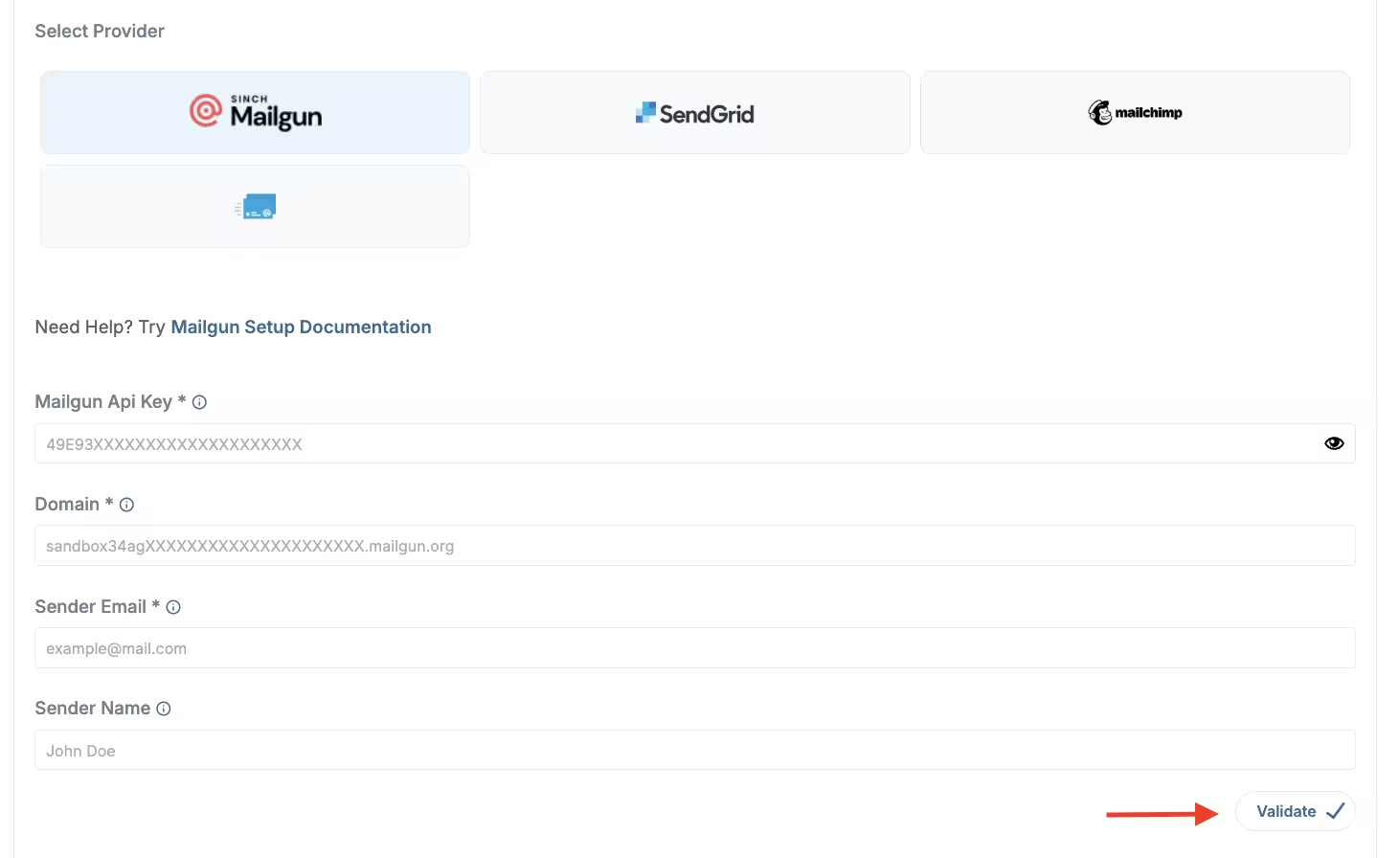
Mailgun info & the Validate button
Step 6: Send a test email
- After validation, use the test email option below the configuration
- Enter a recipient email address
- Click Send Test Email
- Verify that the test email is received at the specified email address
Step 7: Set as default (optional)
To set your Mailgun configuration as default:
- Go to the email configurations overview
- Click on the Set as default button next to your Mailgun configuration
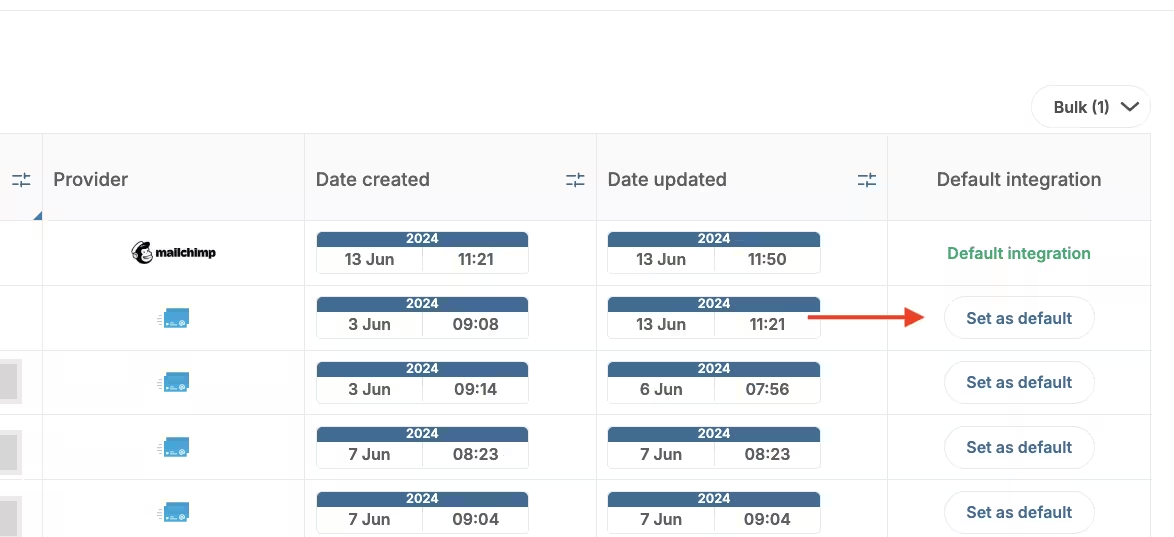
Email configuration - Set as default
Setting a configuration as default means it will appear first as an option when sending emails in Campaigns.
Step 8: Add subscribers
You can add email subscribers using several methods:
- Dashboard Upload — Upload a CSV of emails and user data or manually add emails
- Server API — Programmatically add emails server-side
- SDK Method — Add emails using our client-side SDK (recommended if using our SDKs for push or in-app messaging)
- Email Web Prompt — Use a web prompt to collect email addresses and phone numbers
Troubleshooting
API Key validation fails
Cause: The API key may be incorrect or you’re using the wrong key type.
Fix:
- Double-check you copied the private API key (not the public key)
- Ensure no extra spaces were added when copying
- Generate a new API key if needed
Domain not verified
Cause: DNS records haven’t propagated yet or are incorrect.
Fix:
- Wait a few hours for DNS propagation
- Verify you added all required TXT and MX records correctly
- Use a DNS lookup tool to check if records are visible
- Click Verify DNS settings again in Mailgun
Emails not being delivered
Cause: Domain verification incomplete or sender reputation issues.
Fix:
- Ensure your domain is fully verified in Mailgun (green checkmarks)
- Check Mailgun’s logs for bounces or failures
- Verify your sender email matches your verified domain
- Check if your domain is on any blocklists