
Paywall modals
Paywall modals are subscription gates that appear on your website to restrict access to content, typically used on news websites and content platforms. When users visit a page, the paywall modal appears requiring them to subscribe or pay to read the full article or access premium content.
Key features of Paywall modals:
- Content restriction — Control access to articles, news, or premium content
- Subscription prompts — Encourage users to subscribe for full access
- Flexible paywall types — Implement hard paywalls (full content blocked) or soft paywalls (partial content access)
- Customizable messaging — Design compelling subscription offers and value propositions
- User segmentation — Show different paywall messages to different user segments
- Conversion tracking — Monitor subscription rates and paywall effectiveness
Common use cases for Paywall modals:
- News websites — Restrict access to articles after a certain number of free reads
- Premium content — Gate access to exclusive articles, reports, or content pieces
- Subscription services — Encourage users to subscribe for full platform access
- Content monetization — Generate revenue from content through subscriptions
- Article previews — Show partial content and require subscription for full access
- Tiered access — Offer different subscription levels with varying content access
When to use Paywall modals
Paywall modals are subscription gates used when payment is required for continued use of content, features, or services. They are most effective when displayed at strategic moments in the user journey. Here are the most common scenarios when paywall modals are used:
After reading a certain number of articles — Show the paywall after users have read a specific number of free articles (e.g., 3 free articles per month). This allows users to experience your content quality before requiring a subscription.
When accessing premium content — Display the paywall immediately when users attempt to read premium or exclusive articles. This is ideal for clearly distinguishing between free and premium content.
After scrolling 50–70% of the article — Trigger the paywall when users have scrolled through a significant portion of the article (typically 50–70% of the content). This approach lets users get invested in the content before the paywall appears, increasing the likelihood of conversion.
When unlocking premium features — Show the paywall when users attempt to access premium features or functionality that requires a subscription. This is common in software applications, platforms, or services with tiered access levels.
For ad removal — Display the paywall to offer users an ad-free experience in exchange for a subscription. This monetization model allows users to choose between free content with ads or paid content without ads.
Each of these approaches can be configured using activation triggers and render conditions to ensure the paywall appears at the optimal moment for maximum conversion rates.
Step-by-step guide: Creating your Paywall modal
Follow this complete guide to create, customize, and track your Paywall modal from start to finish.
Step 1: Create your Paywall modal
- Navigate to Sites setup in the HoodEngage dashboard
- Go to the Modals & Forms tab
- Click Add Modal
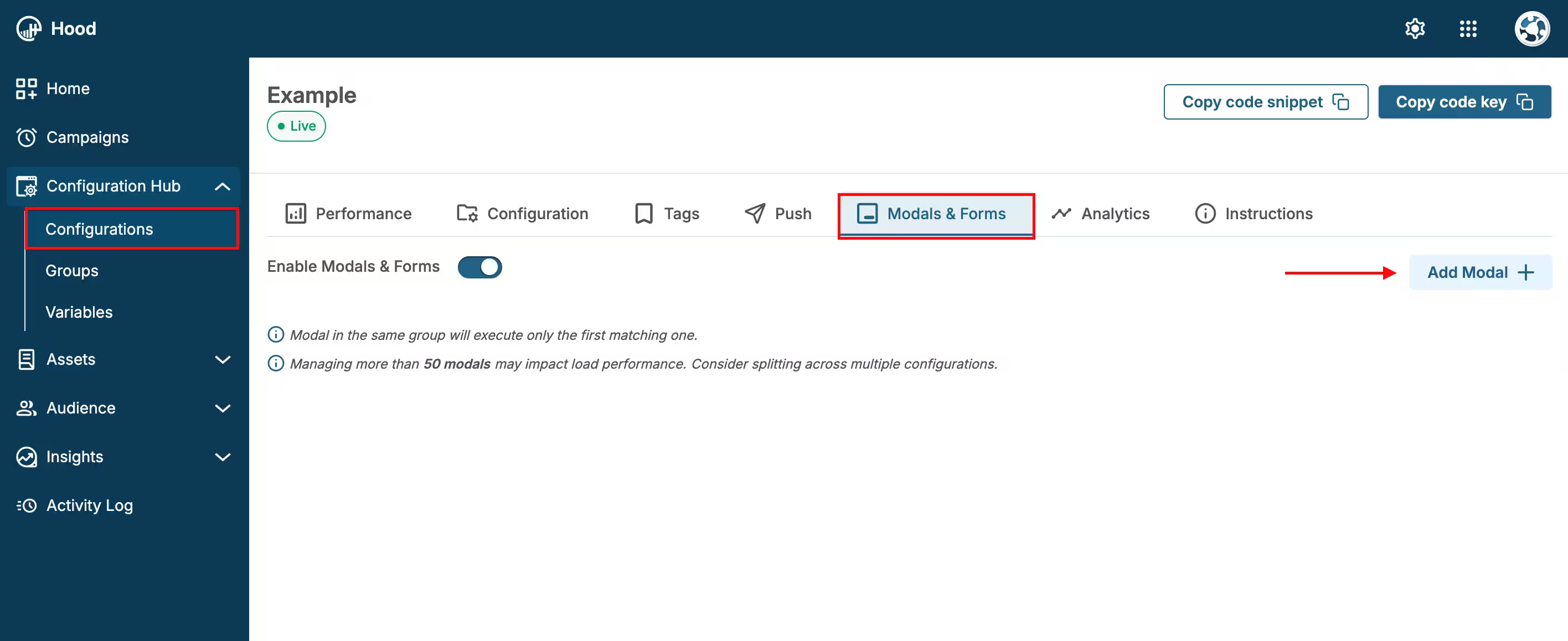
Add Modal
- Choose to either:
- Create Template — Build a custom paywall modal. When you select “Create Template”, Studio will open. Within Studio, you can add text, images, buttons, and other elements to design your paywall.
- Use an existing template — Select from templates if you have previously created them
Step 2: Configure content and design
Add your paywall message:
- Create compelling copy explaining the value of subscribing
- Highlight benefits of subscription (unlimited access, exclusive content, ad-free experience, etc.)
- Include clear call-to-action buttons (Subscribe, Sign Up, Get Started)
Customize the design:
- Choose colors, fonts, and styling that match your brand
- Add your logo or branding elements
- Design an attractive subscription offer
- Ensure the modal is mobile-friendly
Configure paywall type:
- Hard paywall — Completely block content until subscription
- Soft paywall — Allow limited free access before requiring subscription
- Set article limits (e.g., “You’ve read 3 free articles this month”)
Preview your modal — Use the preview feature to see how it will appear to users
Step 3: Set up triggers and display conditions
Configure when and where your Paywall modal should appear. For detailed information about all available activation triggers and render conditions, see Triggers, Conditions, Frequency & Limits.
Recommended settings for Paywall modals:
- Show after users have read a certain number of free articles
- Display on specific article pages or content types
- Target non-subscribed users only
- Use Page Load or Scroll Depth triggers
Step 4: Configure frequency and limits
Set how often your Paywall modal should be displayed to users. For detailed information about frequency options and limits, see Triggers, Conditions, Frequency & Limits.
Recommended settings:
- Show once per session or once per day
- Stop showing after user subscribes
- Set appropriate delays between displays
Step 5: Activate and test
- Save your paywall — Click Save to store your configuration
- Assign to configuration — Ensure the paywall is assigned to the correct configuration
- Test the paywall:
- Visit your website
- Trigger the paywall based on your settings
- Verify the display, messaging, and subscription flow
- Test on both desktop and mobile devices
- Ensure the paywall appears at the right moment
Step 6: Monitor subscription rates and performance
Once your Paywall modal is live, track its performance:
View paywall metrics:
- Navigate to Insights → Feedback
- Find your Paywall modal in the list
- View metrics
Analyze conversion rates:
- Track how many users see the paywall
- Monitor subscription conversion rates
- Identify which triggers and messaging work best
- Compare performance across different user segments
Export data:
- Export paywall interaction data in CSV or JSON format
- All exported files are available in Insights → Exports
- Download for further analysis in external tools
Optimize based on results:
- Test different messaging and value propositions
- Experiment with different triggers and timing
- Adjust paywall type (hard vs. soft) based on conversion data
- A/B test different subscription offers
Value for users
Paywall modals provide several benefits to users:
- Quality content access — Subscriptions help maintain high-quality journalism and content creation.
- Ad-free experience — Subscribers often get ad-free or reduced-ad experiences.
- Exclusive content — Access to premium articles, reports, and exclusive content.
- Support creators — Subscriptions directly support content creators and journalists.
- Unlimited access — Full access to all content without restrictions.
Best practices
- Clear value proposition — Clearly explain what users get with a subscription
- Timing is crucial — Show paywalls after users have engaged with content, not immediately
- Soft paywalls work better — Allow some free content before requiring payment
- Mobile-friendly — Ensure paywalls work well on mobile devices
- Easy to dismiss — Provide clear options (Subscribe or Continue reading if applicable)
- Test different approaches — Experiment with hard vs. soft paywalls
- Respect user experience — Don’t be too aggressive with paywall frequency
- Track conversions — Monitor subscription rates and optimize based on data