
General
The General tab under Settings lets you control how configuration changes are published and pause or resume sending for your workspace.
Available settings:
- Publishing — Choose whether configuration changes are published automatically.
- Danger zone — Pause delivery for the whole workspace, for all campaigns or only campaigns with selected labels, or for transactional messages.
Accessing General settings
- Open the workspace you want to manage.
- Navigate to Settings.
- Select General.
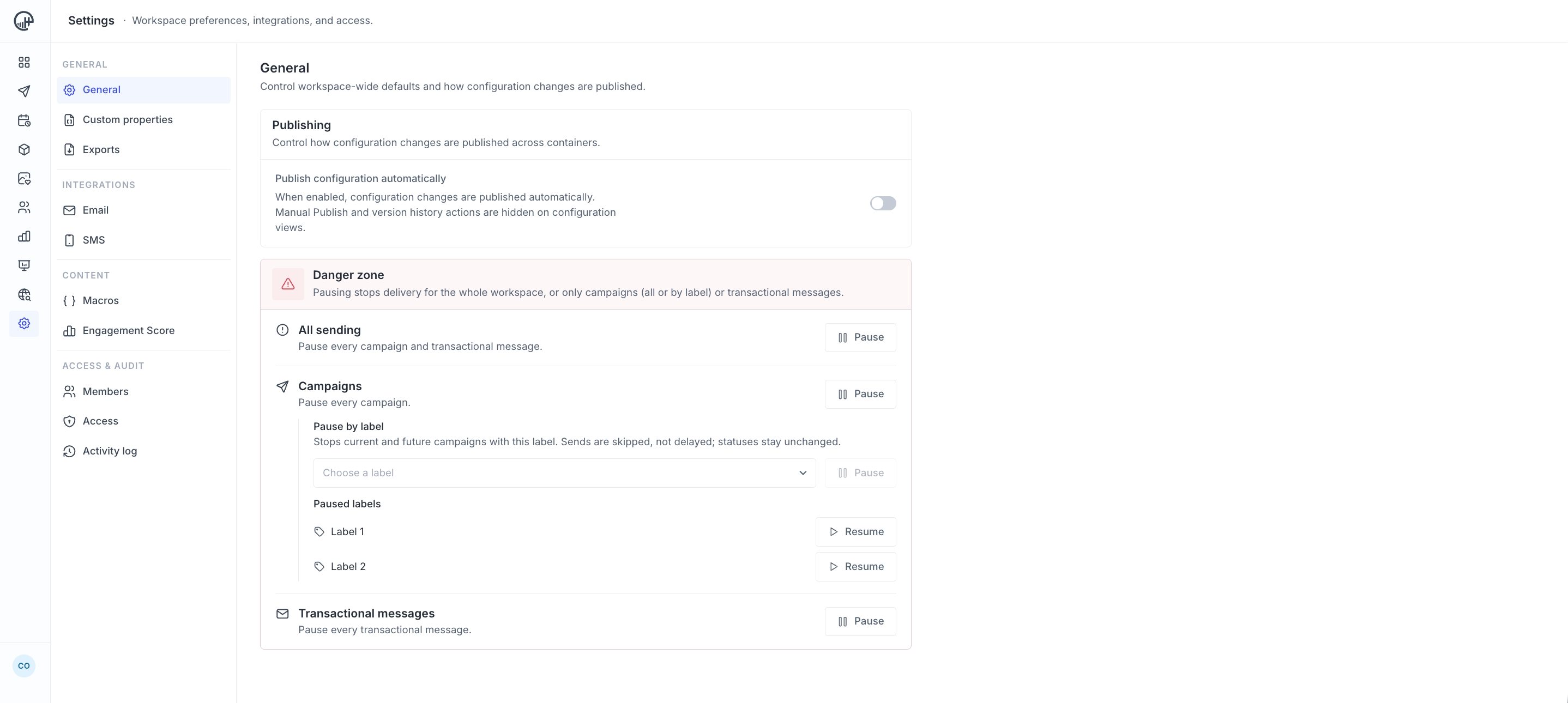
Publishing and Danger zone
Publishing
The Publishing section controls how configuration changes are published across containers in your workspace.
Enable automatic publishing
Enable Publish configuration automatically to publish configuration changes without a separate manual publishing step.
- In the Publishing section, turn on Publish configuration automatically.
- Review the Enable auto-publish? confirmation dialog.
- Click Enable to confirm, or Cancel to keep the current setting.
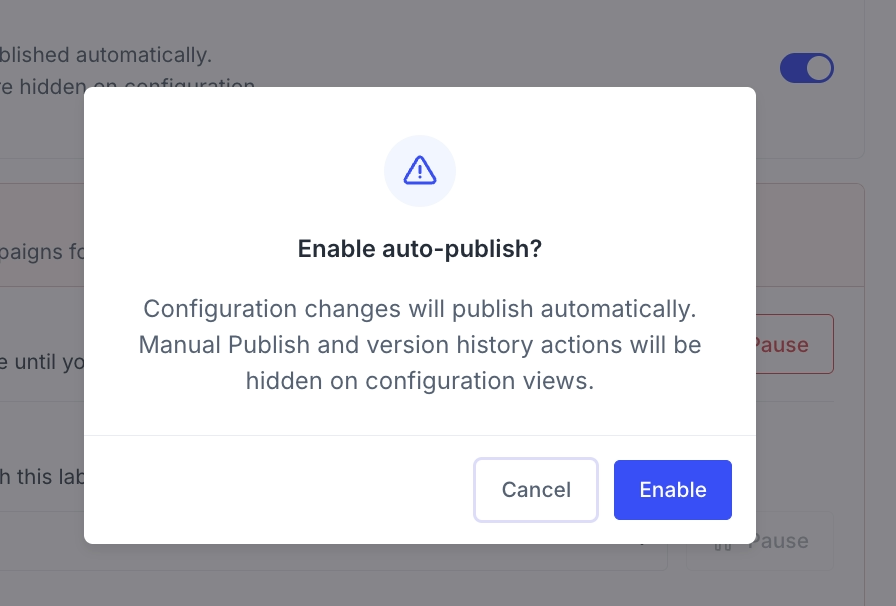
Confirmation dialog for enabling automatic configuration publishing
Disable automatic publishing
Turn off Publish configuration automatically to return to manual publishing. Use the Publish action on configuration views when you are ready to publish your changes.
Danger zone
The Danger zone section lets you stop delivery for the whole workspace, for campaigns only (all campaigns or campaigns with a specific label), or for transactional messages only. Use these controls when you need to interrupt sending without changing individual campaign statuses or configurations.
The section contains three controls:
| Control | What it pauses |
|---|---|
| All sending | Every campaign and transactional message in the workspace. |
| Campaigns | Every campaign. Use Pause by label to pause only campaigns with a selected label. |
| Transactional messages | Every transactional message. |
Pause all sending
Use All sending to stop every campaign and transactional message in the current workspace, including campaigns without labels.
- Find All sending in the Danger zone section.
- Click Pause.
- Review the confirmation dialog.
- Enter PAUSE in the Confirmation field.
- Click Pause to confirm.
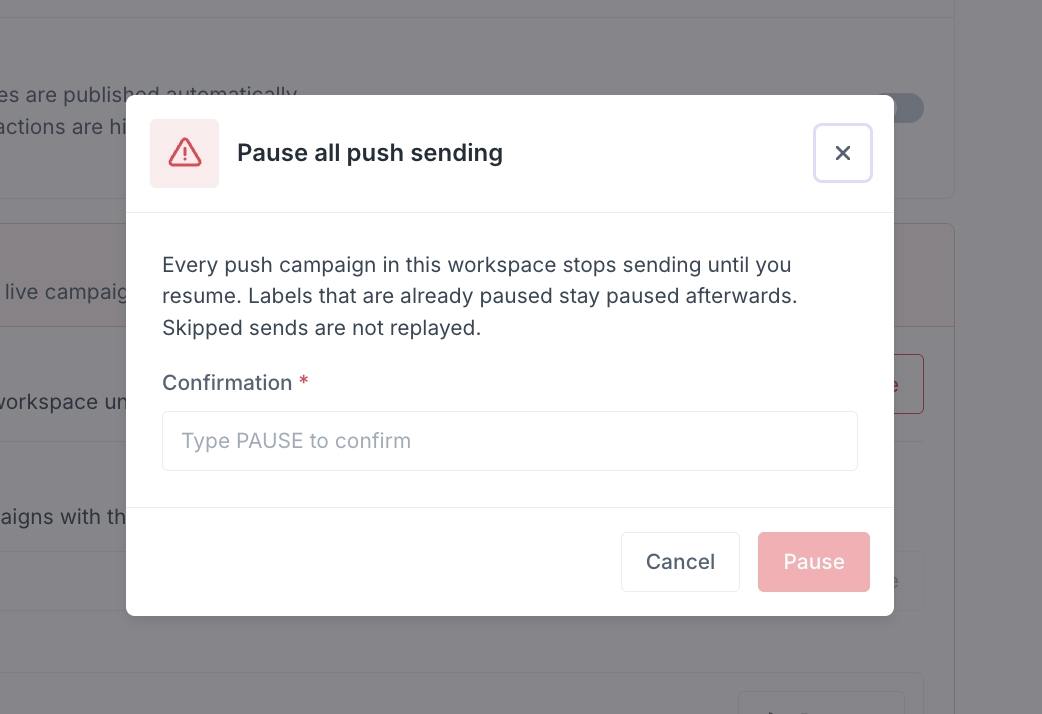
Confirmation dialog for pausing all sending in the workspace
Sending remains paused until you resume it. Any labels that were already paused keep their paused state.
Pause all campaigns
Use Campaigns to stop every campaign in the workspace while transactional messages continue to send.
- Find Campaigns in the Danger zone section.
- Click Pause next to Campaigns.
- Review the confirmation dialog.
- Enter PAUSE in the Confirmation field.
- Click Pause to confirm.
Pause transactional messages
Use Transactional messages to stop every transactional message in the workspace while campaigns continue to send.
- Find Transactional messages in the Danger zone section.
- Click Pause.
- Review the Pause transactional confirmation dialog.
- Enter PAUSE in the Confirmation field.
- Click Pause to confirm, or Cancel to keep sending transactional messages.
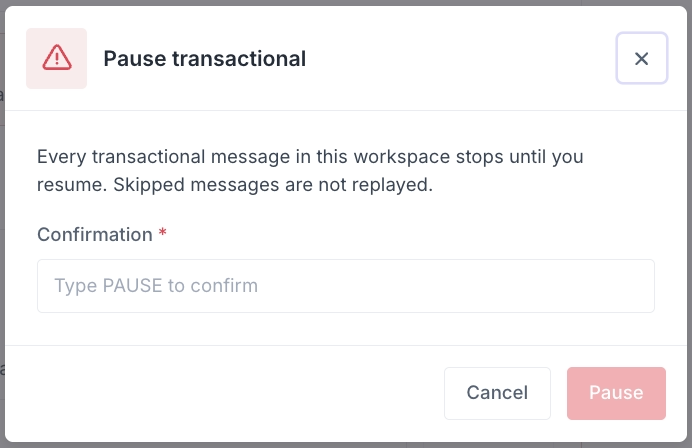
Confirmation dialog for pausing transactional messages
Transactional messages remain paused until you resume them. Skipped messages are not replayed.
Resume sending
To lift a pause on All sending, Campaigns, or Transactional messages, click Resume next to the paused control.
Resuming does not resume individually paused labels. Campaigns with those labels remain blocked until you resume the relevant labels separately.
Pause by label
Use Pause by label under Campaigns to stop current and future campaigns carrying a selected label while allowing other campaigns to continue, provided neither All sending nor Campaigns is paused.
- Find Pause by label under Campaigns in the Danger zone section.
- Open the Choose a label dropdown.
- Select the label you want to pause.
- Click Pause.
The label appears in the Paused labels list. Campaigns carrying this label cannot send until the label is resumed. Their statuses and configurations remain unchanged.
Resume a paused label
- Find the label in the Paused labels list.
- Click Resume next to that label.
- Review the confirmation dialog.
- Click Resume to confirm, or Cancel to keep the label paused.
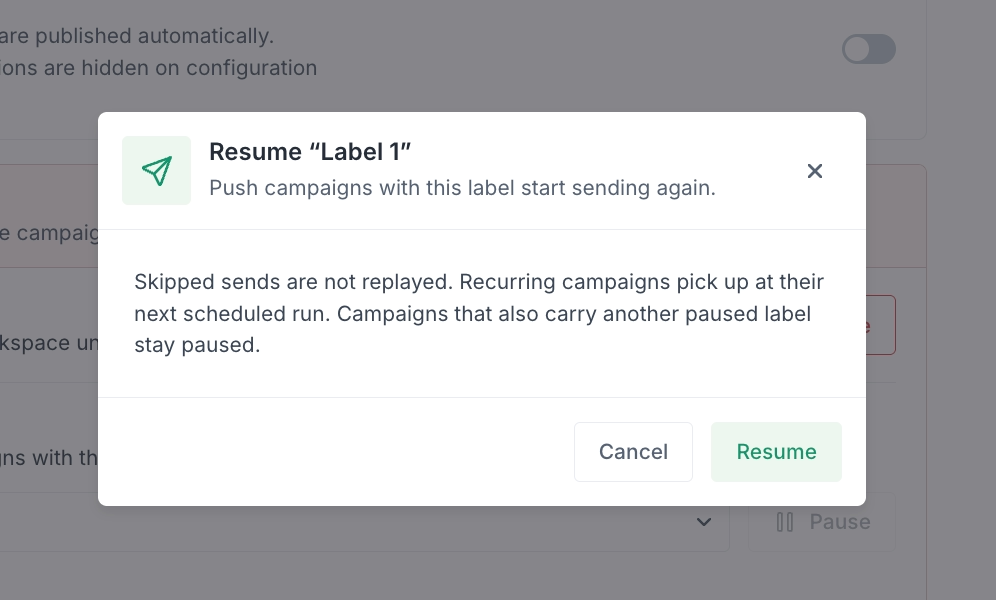
Confirmation dialog for resuming sending for a selected label
For example, if a campaign carries both Promotions and Updates, and both labels are paused, resuming Promotions alone does not allow the campaign to send. Updates must also be resumed.
Best practices
- Check the workspace — Make sure you are managing the intended workspace before pausing or resuming sending.
- Choose the appropriate scope — Pause by label when only a group of campaigns needs to stop, Campaigns when all campaigns need to stop, and Transactional messages when only transactional messages need to stop. Use All sending when everything needs to stop.
- Review paused labels after resuming — Resuming All sending or Campaigns does not clear individual label pauses.
- Account for skipped sends — Resuming sending does not deliver messages skipped during the pause.